
REPL
F1 smart module has pre-installed MicroPython as its operating system (OS), which includes a REPL. REPL stands for Read-Eval-Print Loop, an interactive interpreter mode that allows you to input code, execute it, and immediately see the results.
Using the CtrlR Plugin, open and connect a device or use a serial terminal (PuTTY,
screen, picocom, etc). Upon connecting, there should be a blank screen with a
flashing cursor. Press Enter and a MicroPython prompt should appear, i.e.
>>>. Let’s make sure it is working with the obligatory test:
>>> print("Hello F1!")
Hello F1!
Note
The >>> characters should not be typed. They indicate the prompt. Once the
text print("Hello F1!") has been entered and Enter pressed, the
output should appear on screen. Basic Python commands can be tested out in a
similar fashion.
If this is not working, try either a hard reset or a soft reset; see below.
Resetting the Device
If something goes wrong, the device can be reset with two methods: hard reset and soft reboot.
Hard reset
By pressing the RESET button on the F1 Starter Kit (or applying a high signal to the F1 module reset signal), a reset signal is triggered to the RESET pin of the F1 module.
Please notice that any serial/COM port connection will reset and may need to be manually reconnected if the auto-connect option is not enabled in the CtrlR plug-in.
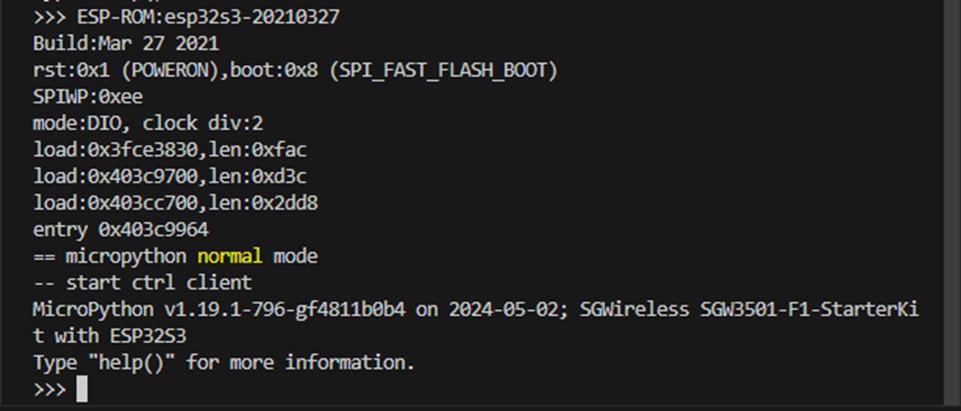
After reset, the normal MicroPython boot message will appear in the terminal:
Soft reboot
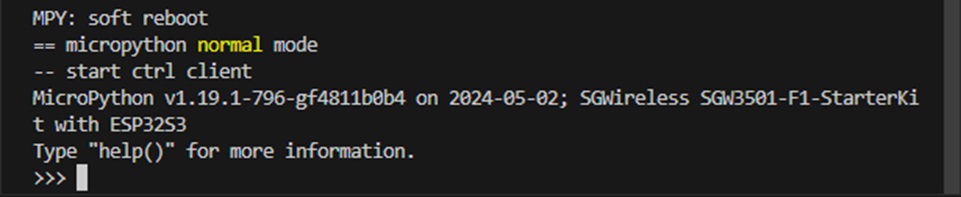
By pressing Ctrl+D at the MicroPython prompt, a soft reset is performed. The soft reboot message will appear in the terminal:
REPL control commands
In MicroPython, there are several control commands available in the REPL:
Ctrl+A — on a blank line, enter raw REPL mode
Ctrl+B — on a blank line, enter normal REPL mode
Ctrl+C — interrupt a running program
Ctrl+D — on a blank line, do a soft reset of the board
Ctrl+E — on a blank line, enter paste mode
Ctrl+F — do hard reset in safeboot mode
Boot modes
There are two boot modes in MicroPython: normal boot mode and safe boot mode.
Normal boot mode
MicroPython searches for and runs boot.py during startup, then runs
main.py after boot.py if those files exist in the file system under the
/ directory.
If those files are absent, MicroPython will skip and continue booting.
Safe boot mode
In safe boot mode, MicroPython will intentionally bypass searching and running
boot.py and main.py. This is a safeguard to boot up MicroPython in case
of a lock-up caused by boot.py or main.py.