
Introducing VS CtrlR
For custom IoT application development, the F1 Starter Kit can be configured on the Microsoft Visual Studio Code IDE platform with the CtrlR Plugin.
You will need the latest version of Visual Studio Code to proceed, which can be downloaded and installed here.
Installing VS CtrlR Plugin
Launch Visual Studio Code and navigate to Extensions. Search for “CtrlR” and click Install.
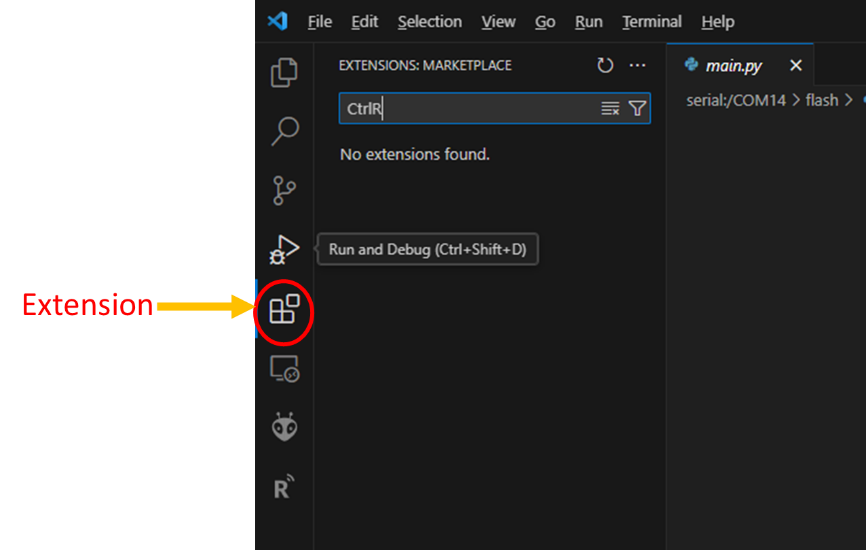
Press the Reload button to complete the CtrlR Plugin installation.
Configuring F1 Starter Kit for CtrlR Plugin on your PC
Connect your F1 Starter Kit to your PC and turn it on (SW200 switch from OFF to ON).
If your PC doesn’t have the Silabs CP2102N Virtual COM port driver installed previously, an unknown device will be shown in your PC’s Device Manager.
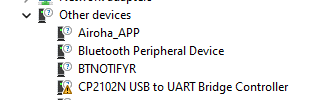
Download and install the Virtual COM Port driver.
Upon installation of the driver, a new COM port should show up in your PC’s Device Manager.

Go back to Visual Studio Code and ensure that the CtrlR Plugin has been correctly installed.
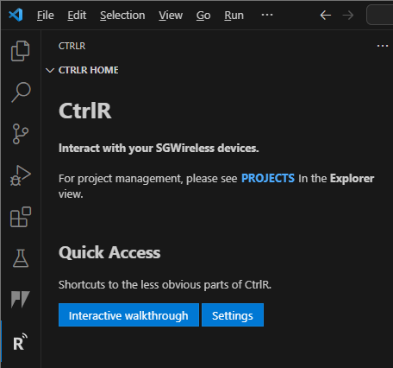
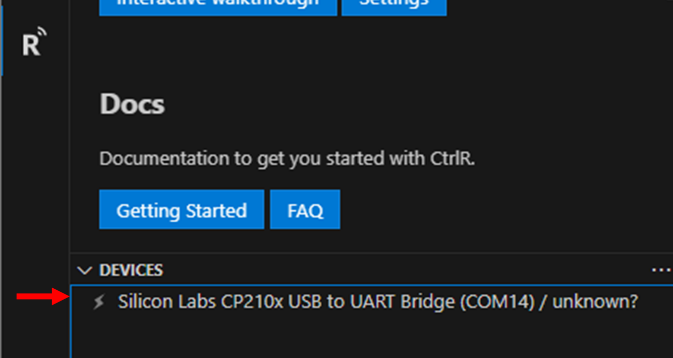
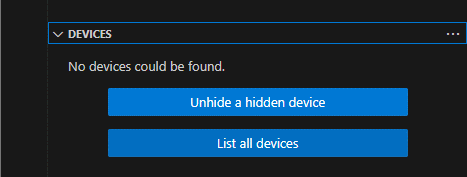
Normally, your device will be auto-detected as shown above. If this does not work, click [List all devices] in the DEVICES window.
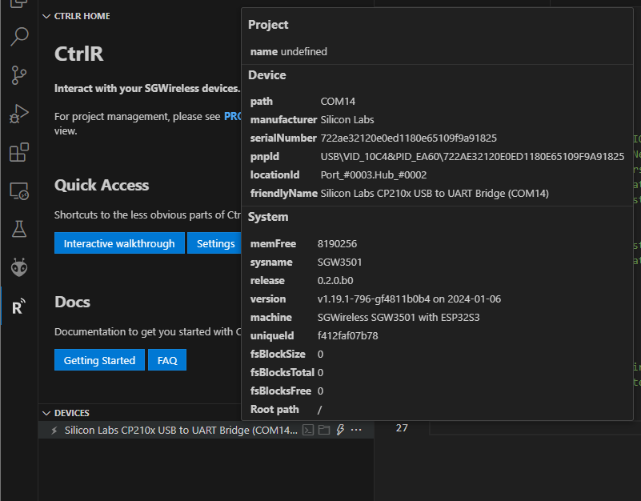
If everything is correct, device details will pop up when your mouse pointer is placed on the device:
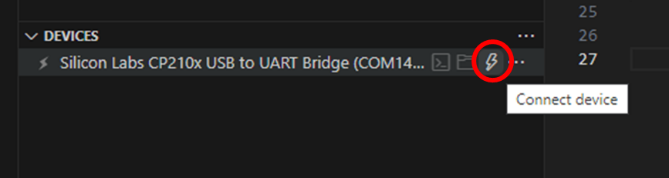
Use the “Connect” button to connect VS Code with the device.
Next, you will be able to invoke a terminal, launch file explorer, or disconnect from the device with the 3 buttons.
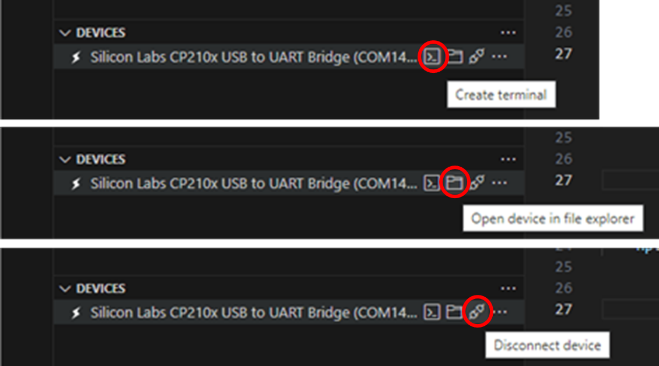
The terminal will let you interact with the device’s MicroPython REPL. Invoking a simple command
os.uname()will print the firmware version of your device.
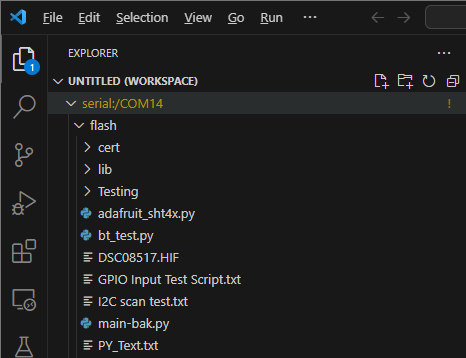
The file explorer provides a drag-and-drop interface to view, add, and edit the files within your device.
Next Steps
Program the Starter Kit to send your data to the Ctrl platform. See Your First Sensor Data or Your First F1 Code.