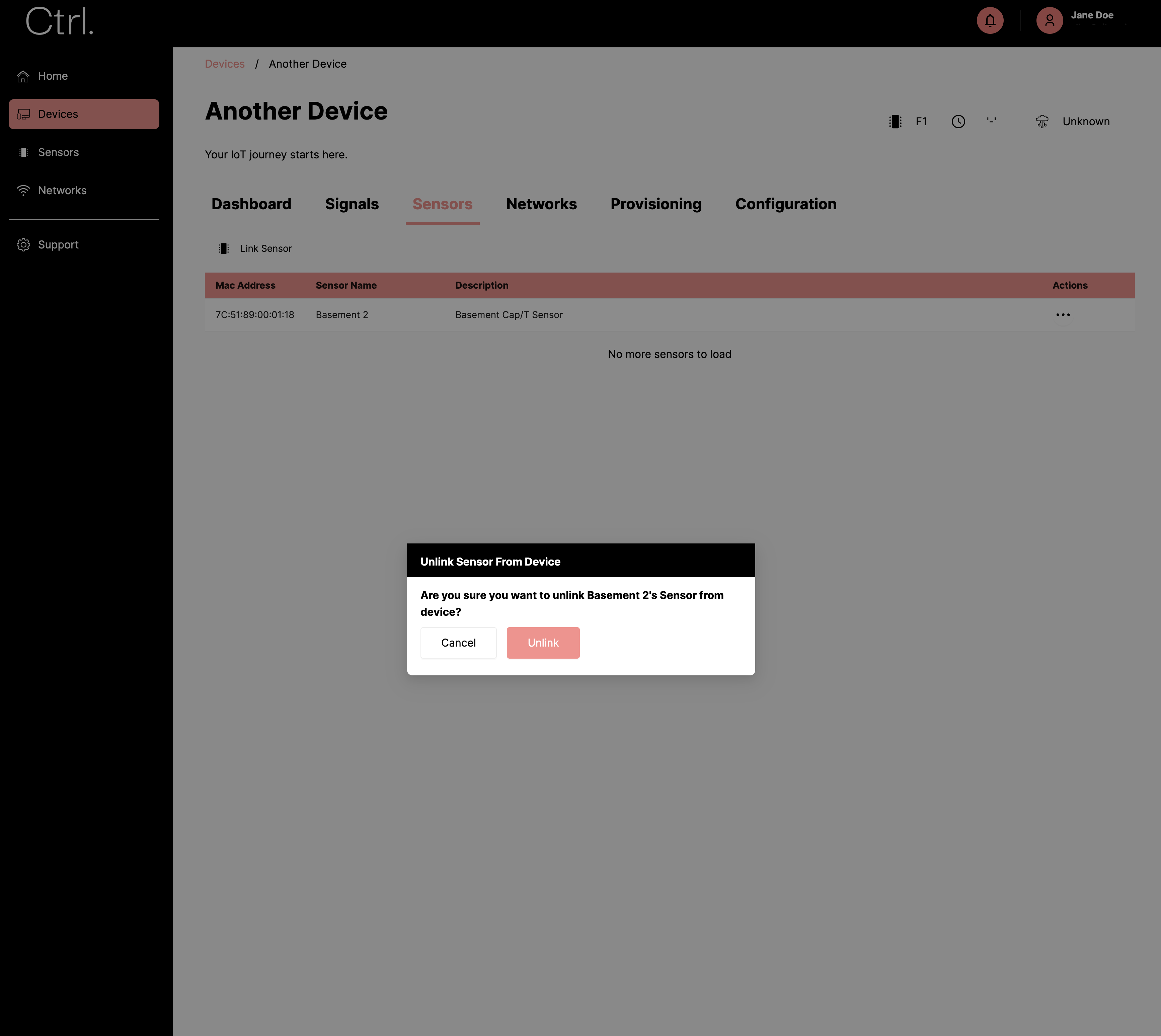
Sensors
Add a Sensor to Ctrl
In this section, we will explain how to add an SG Wireless sensor to Ctrl.
Navigate to Sensors and click on
Add Sensor.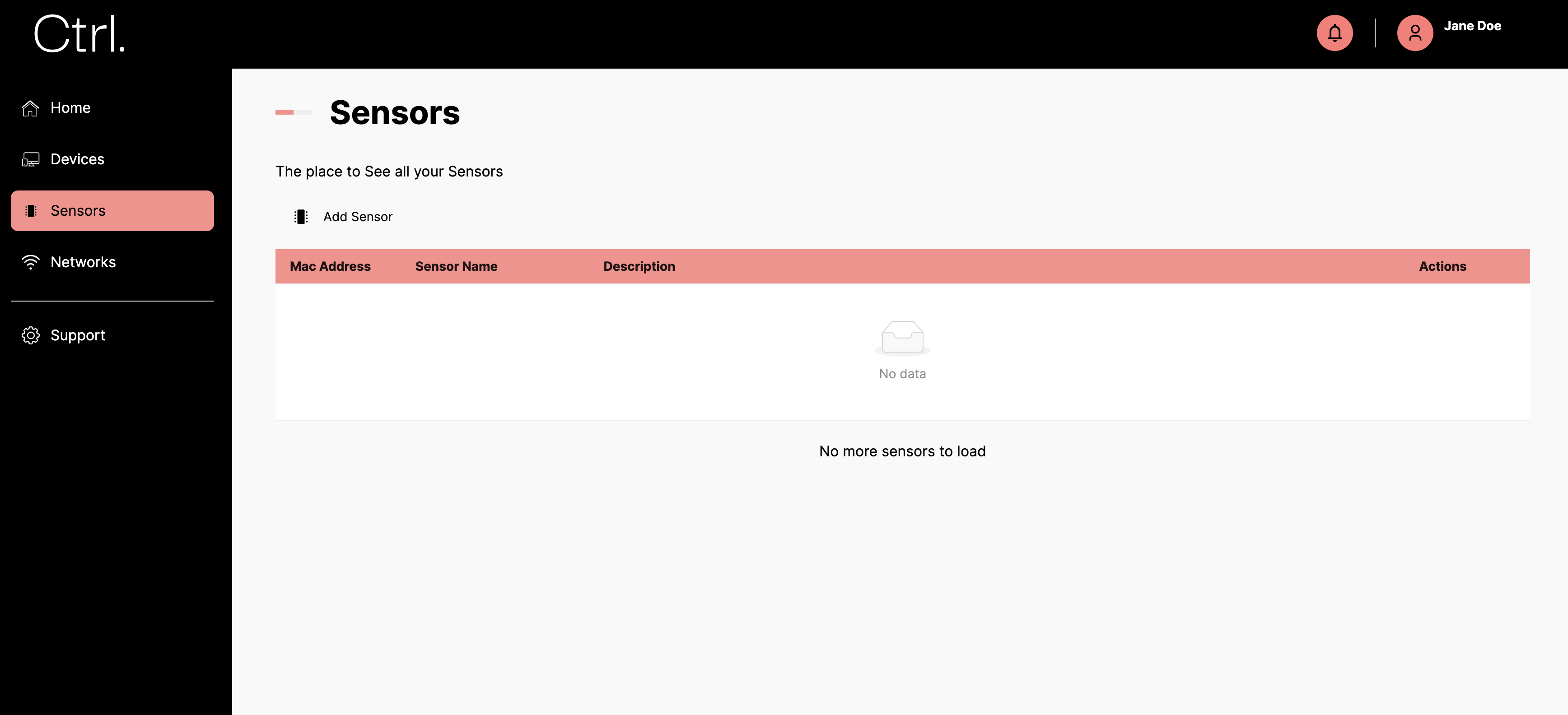
Enter the Sensor’s MAC address. You can enter just the last 3 segments.
Choose the device you want the sensor to be initially linked to.
Enter an appropriate
Sensor NameandSensor Descriptionto better identify it.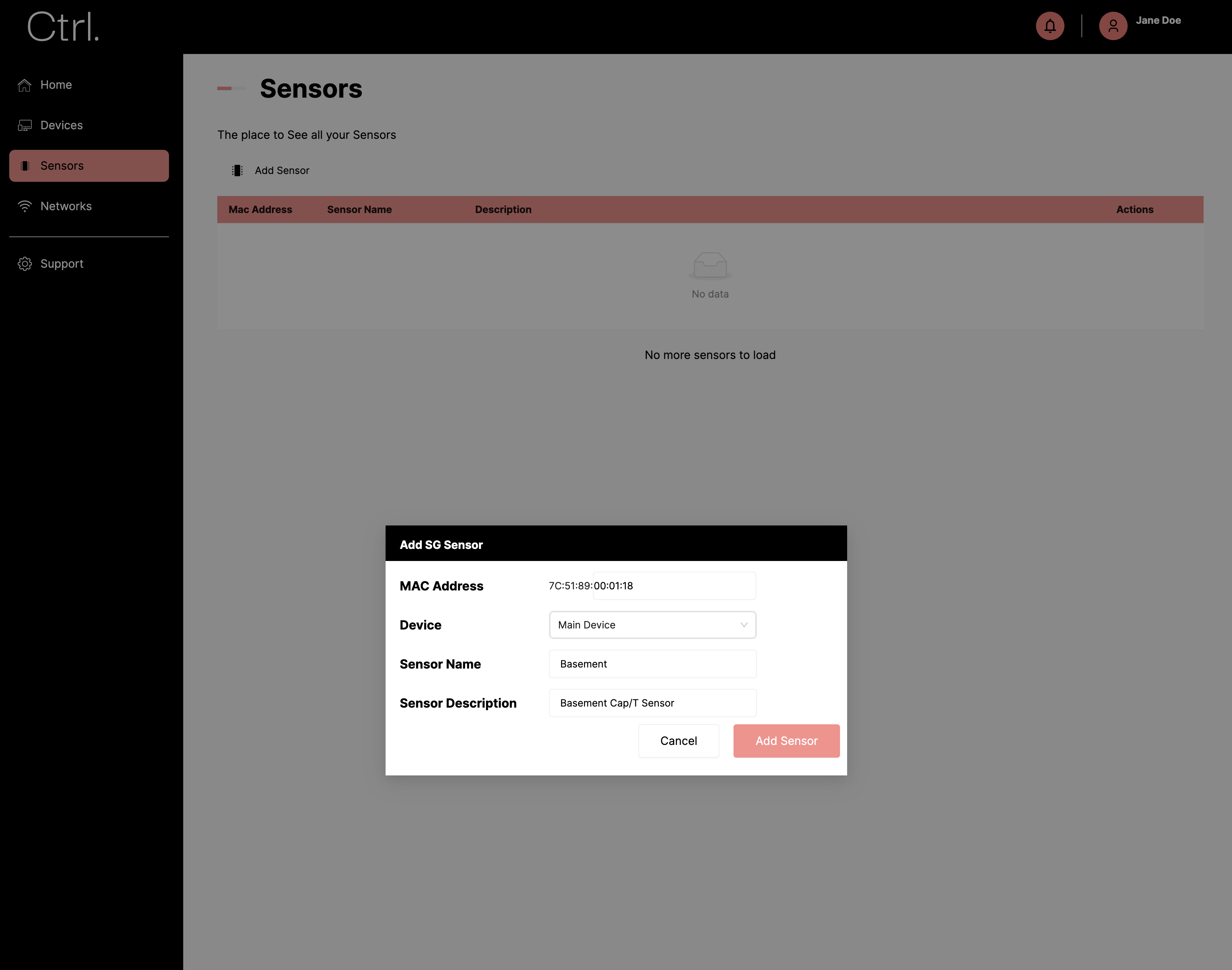
The new sensor will appear on the
Sensorspage and in the linked device’sSensortab.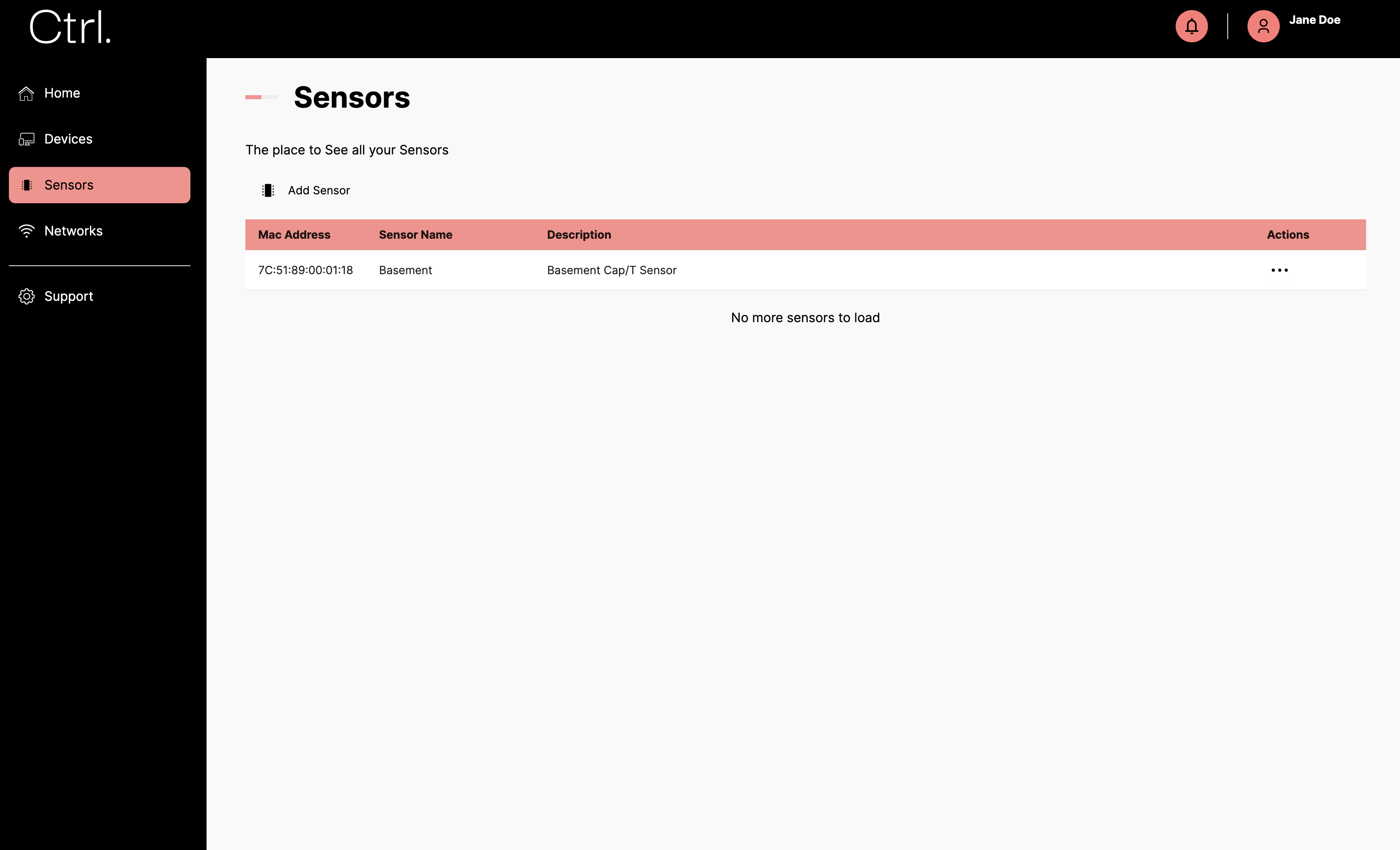
Each sensor can be linked to multiple devices, allowing for versatile integration. The data collected by the sensor will flow through the connected devices and ultimately reach Ctrl.
On your Dashboard, there should now be a Temperature and Humidity widget. These will update when the device sends sensor data to Ctrl. Multiple sensors will show up in a different colour with their name in the legend.
Update Sensor Information
Navigate to the
Sensorspage.Click on the “…” (ellipsis) icon next to the sensor you wish to edit.
Select the
Editoption from the dropdown menu.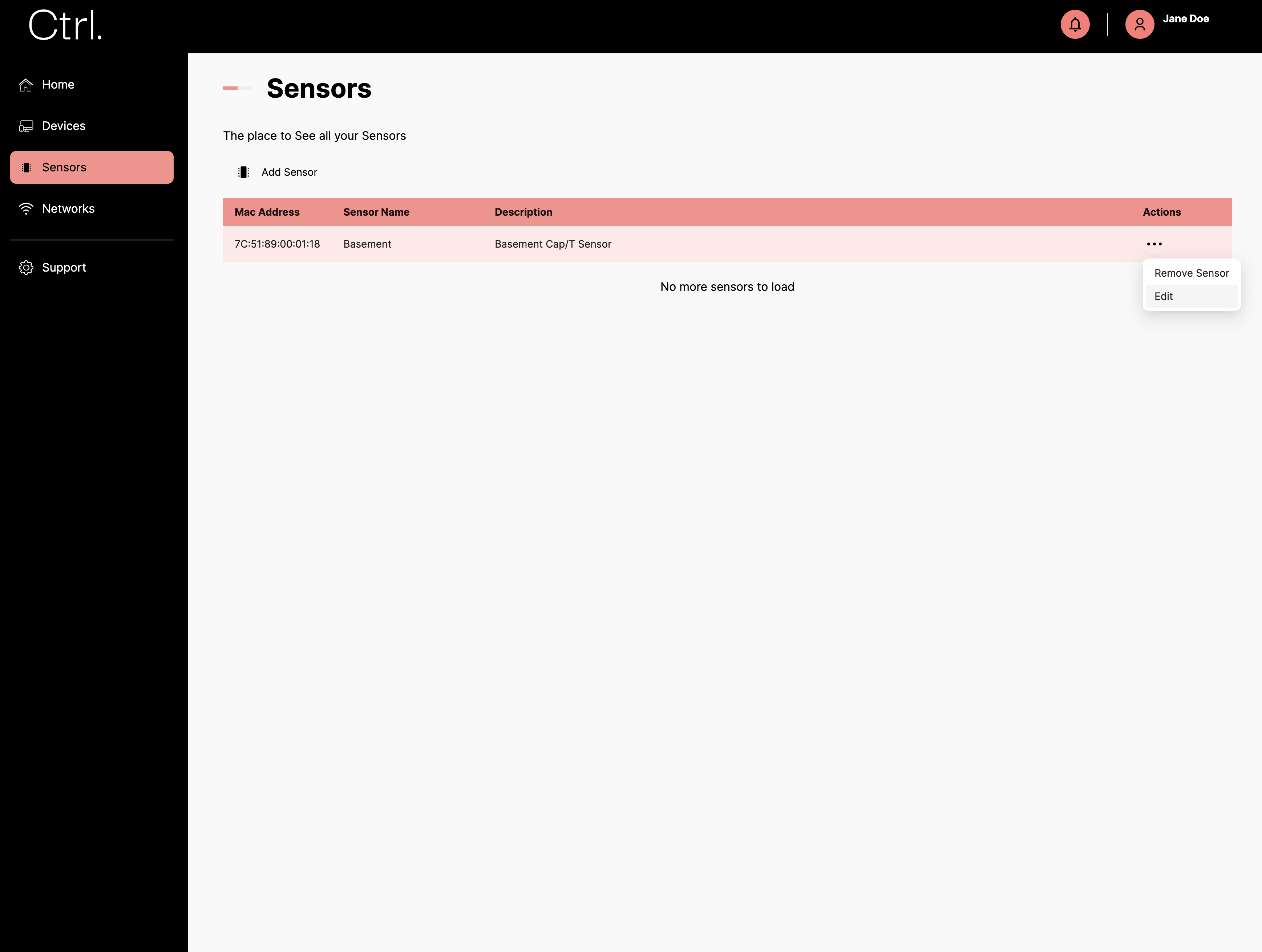
Update the
NameorDescriptionfields as needed.Save your changes by clicking
Edit Sensor.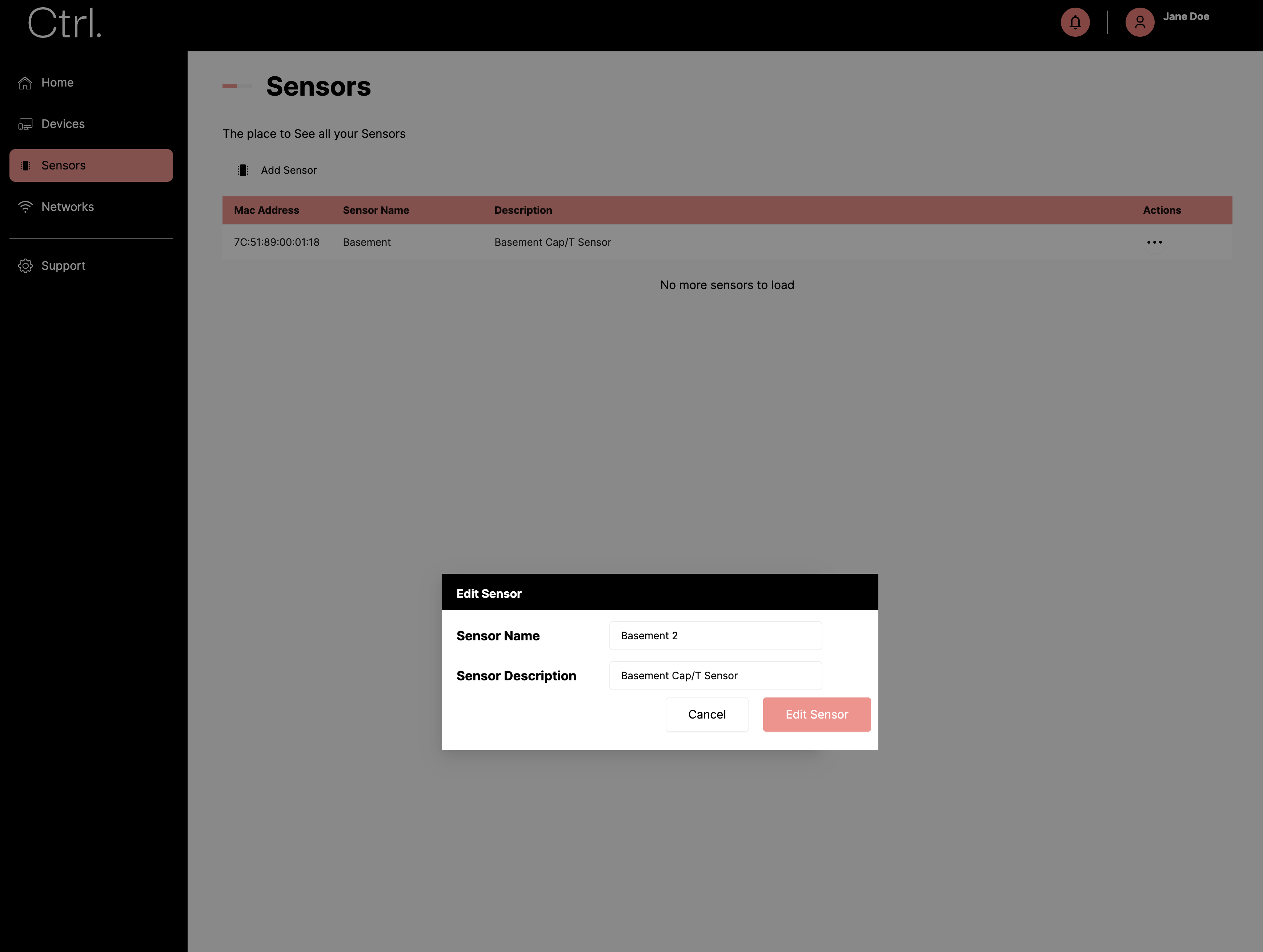
Remove a Sensor from Ctrl
Navigate to the
Sensorspage.Click on the “…” (ellipsis) icon next to the sensor you wish to remove.
Select the
Remove Sensoroption from the dropdown menu.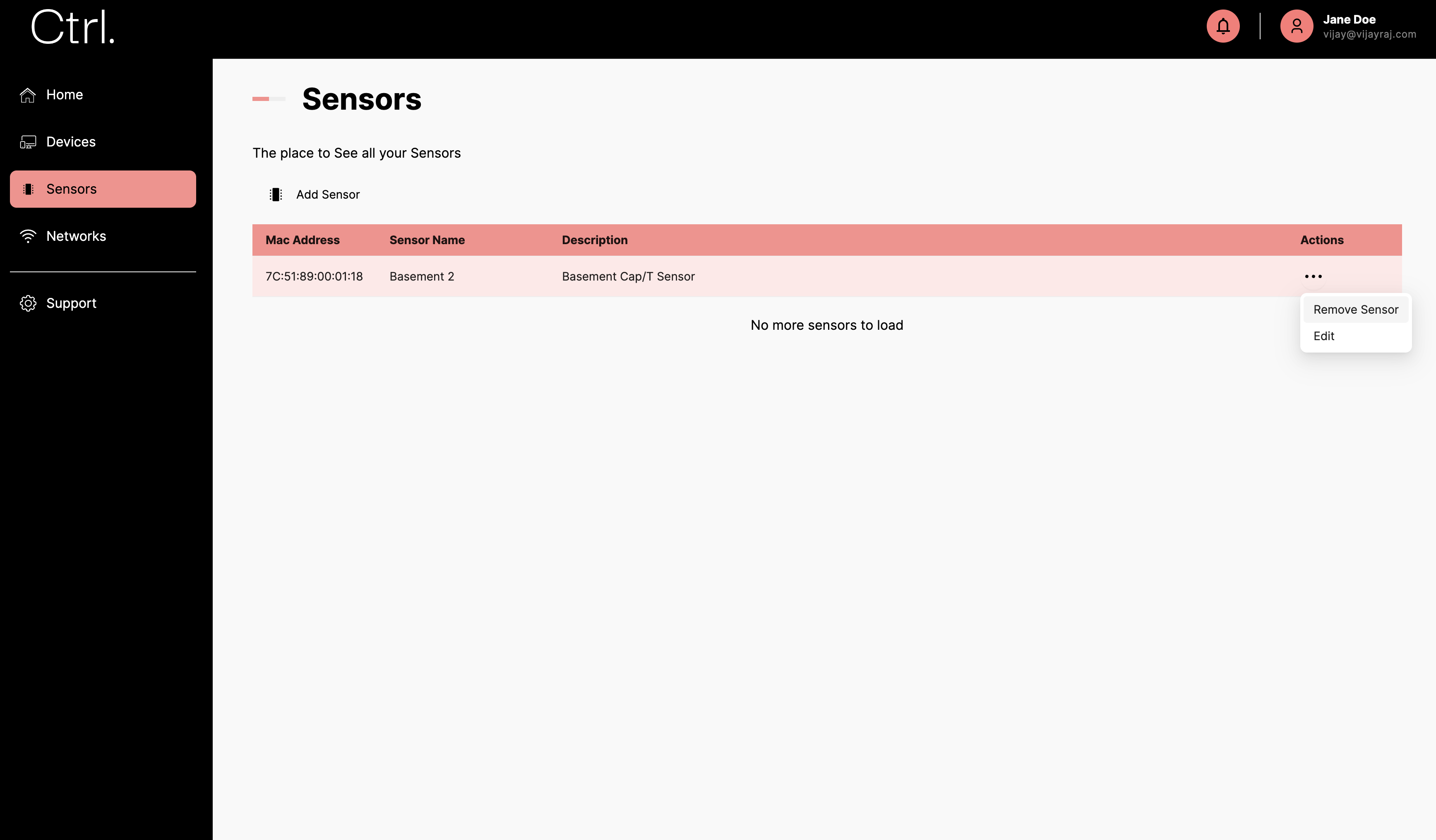
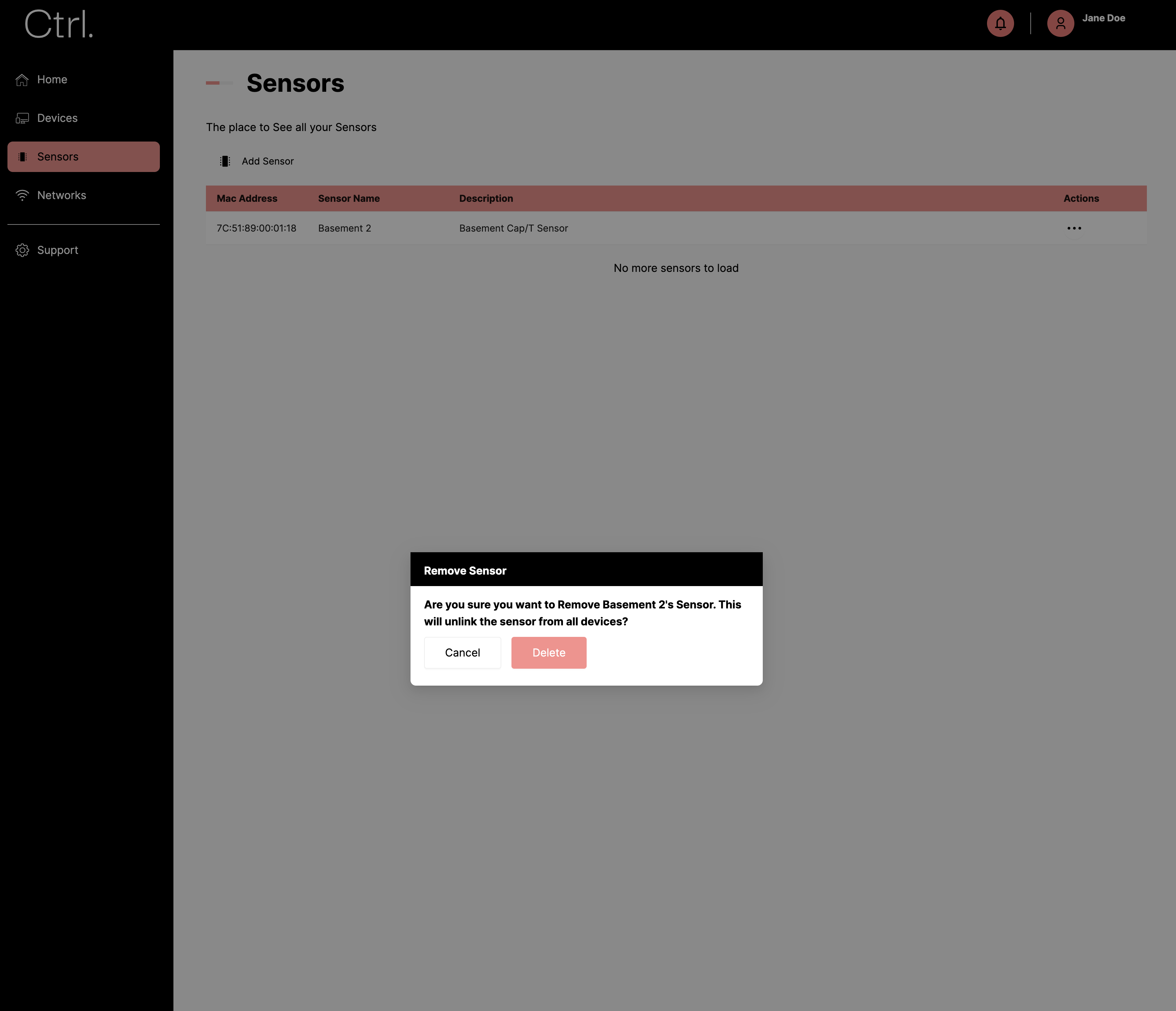
Confirm by clicking
Delete.Deleting will unlink sensors from any linked devices and remove the sensor from the platform.
Link Sensor to a Device
This action is necessary to send data from sensors to Ctrl. The linked device transmits the data readings with the sensor as the source.
Navigate to the
Devicepage and select the device that you want to link to the sensor.Go to the
Sensorstab within the device page.Click on
Link Sensor.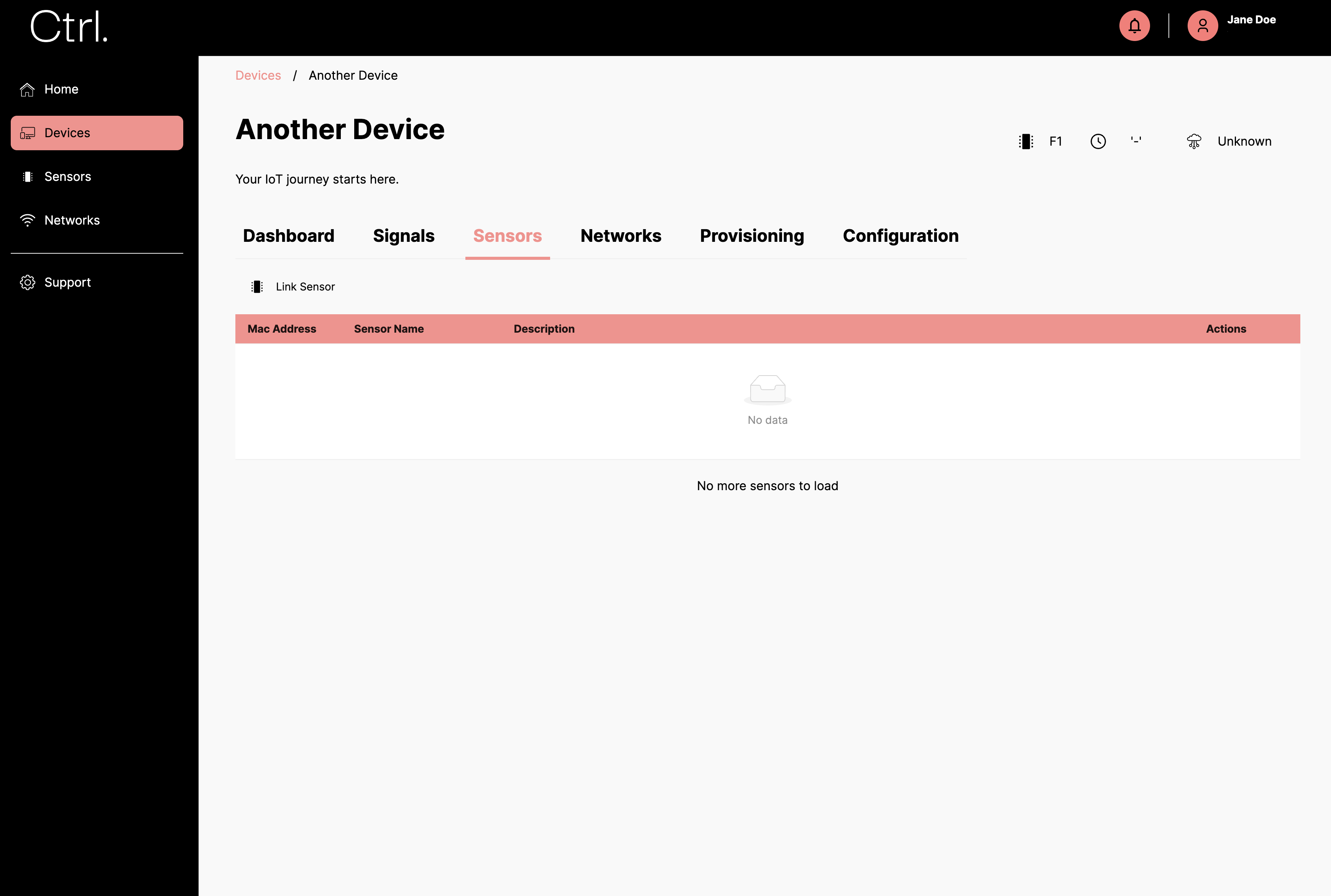
Choose the sensor you want to link from the list provided.
Click the
Link Sensorbutton to confirm.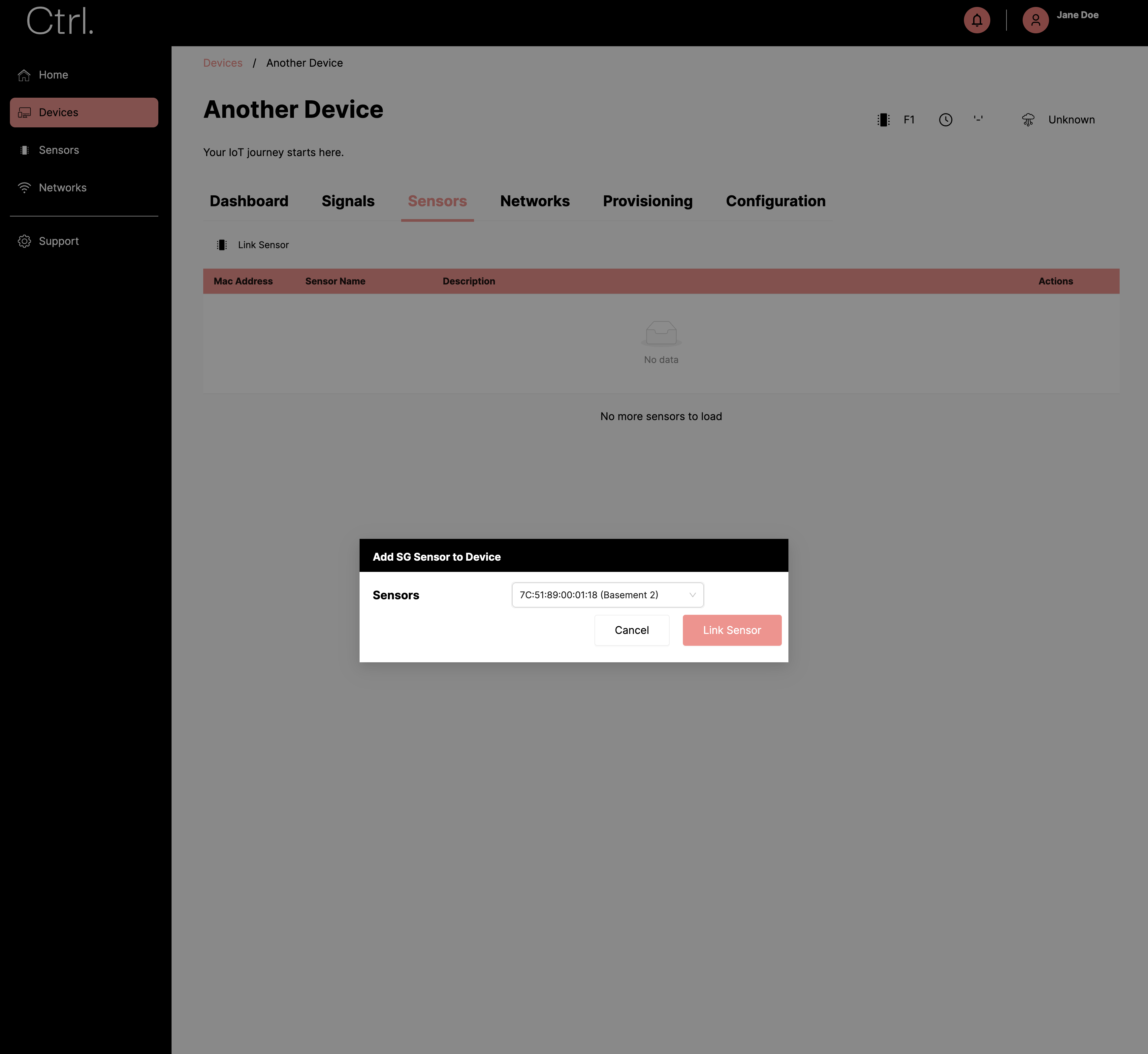
Ctrl will send a message to the device, instructing it to listen for the sensor’s MAC address and establish the link.
Unlink Sensor from a Device
After unlinking, no data readings will be sent to Ctrl from the device for this sensor.
Navigate to the
Devicepage and select the device from which you want to unlink the sensor.Go to the
Sensorstab within the device page.Click on the “…” (ellipsis) icon next to the sensor you wish to unlink.
Select the
Unlink Sensor from Deviceoption from the dropdown menu.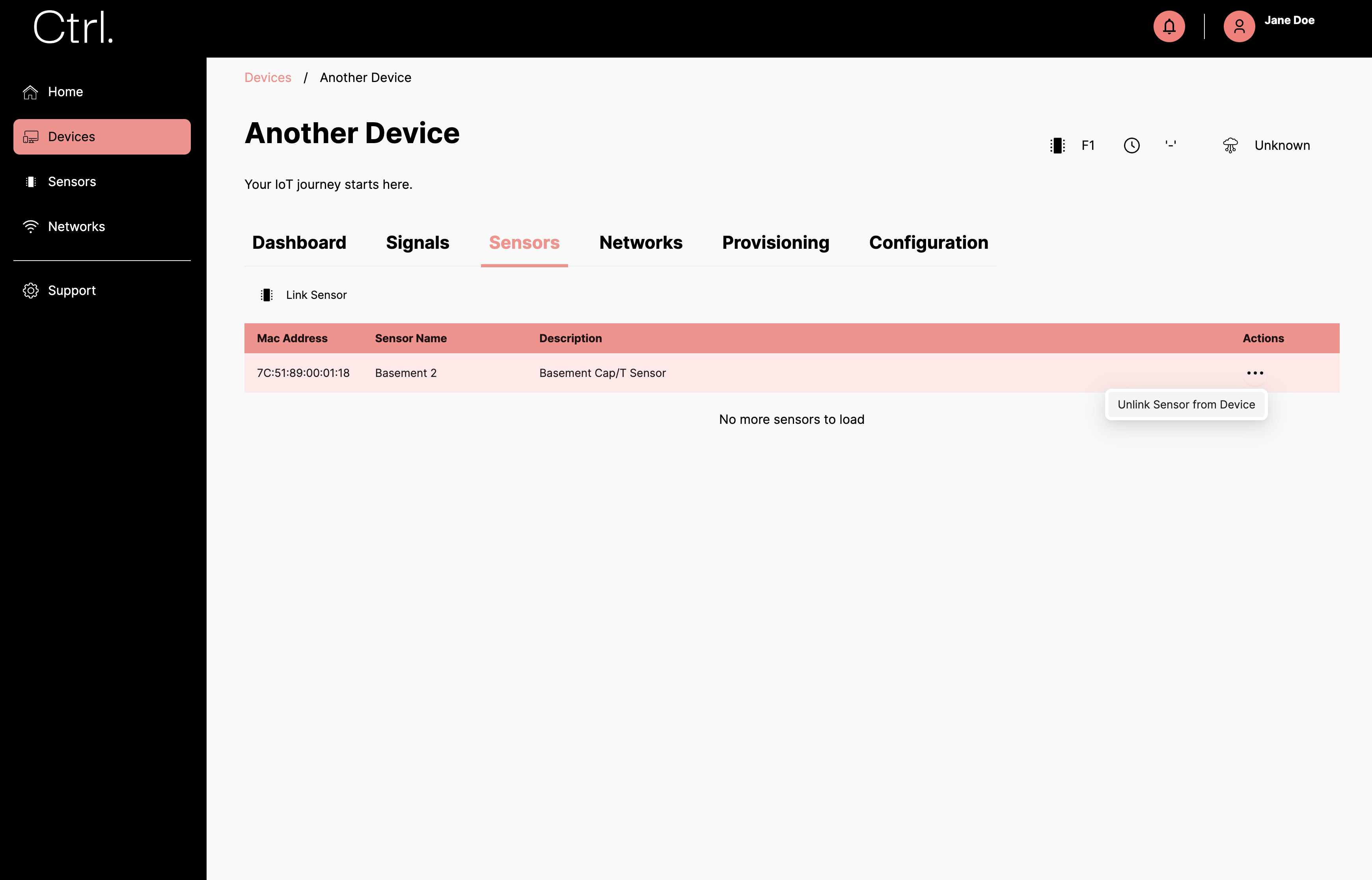
Confirm the action by clicking on the
Unlinkbutton in the confirmation dialog.