
Devices
In general, Ctrl communicates to your device through MQTT. Depending on the type of device, add your devices to Ctrl through one of the following steps:
Adding F1 devices: Zero-Touch Provisioning or Manual Provisioning
Adding other devices: Use the Manual Provisioning flow
Firmware Update
Note: this feature is only available for F1 Starter Kits
Once connected to Ctrl, it will detects the current firmware version of the Starter Kit. Information regarding the firmware version can be found in the following sections:
Header part of each device details
‘Firmware Update’ section of the device’s Deployment Management tab
You can perform Over-The-Air (OTA) firmware update by clicking the ‘Update now’ button on the ‘Firmware Update’ section of the device’s Deployment Management tab. This button will be activated if the following conditions are fulfilled:
The current firmware version is older than the latest version
Device status is online
If you wish to deploy other firmware versions or if the device is currently offline, you can perform the update though USB connection using our Visual Studio Code CtrlR plugin.
File Management
Default File Structure
Following Micropython implementation on ESP 32, it uses a flat, Unix-like Virtual File System (VFS) where the primary flash storage is typically mounted at the root directory (/). By default, it consists of the following directories:
- / (Root): Contains two files that will be automatically searched and executed during boot up:
boot.py: This script runs first upon power-on or reset. It is typically used for low-level system configuration, such as setting up network connections or mounting additional filesystems.
main.py: This script runs immediately after boot.py finishes. It contains your primary application logic and will restart automatically if it finishes execution.
/lib: A standard location for third-party libraries and custom modules. Placing .py or .mpy files here allows them to be easily imported using the standard import statement.
/data (optional) Often used by developers to store non-code assets like config.json, static web files, or log data.
Software Releases (File Content Deployment)
You can remotely deploy new file(s) to the device’s root directory through Ctrl through Software Release feature. File content management of F1 Starter Kit consists of two main parts:
- Software releases management on Device Templates - one release for all devices under the same template.
Go to your target device template, either by clicking ‘device template in use’ from the device details or by clicking one of the templates on the Home page’s Device Template tab.
Go to the Software Releases tab. You will find a list of applicable release versions of the template.
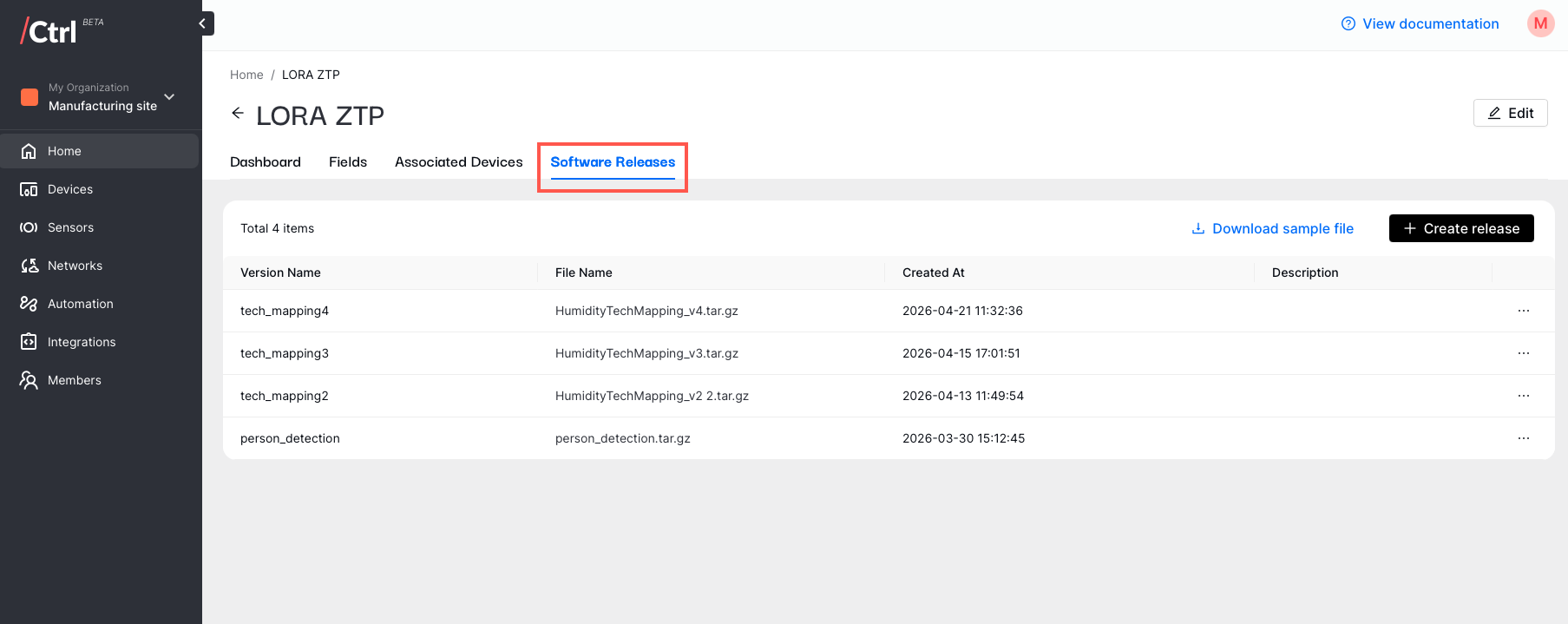
- To create a new release version:
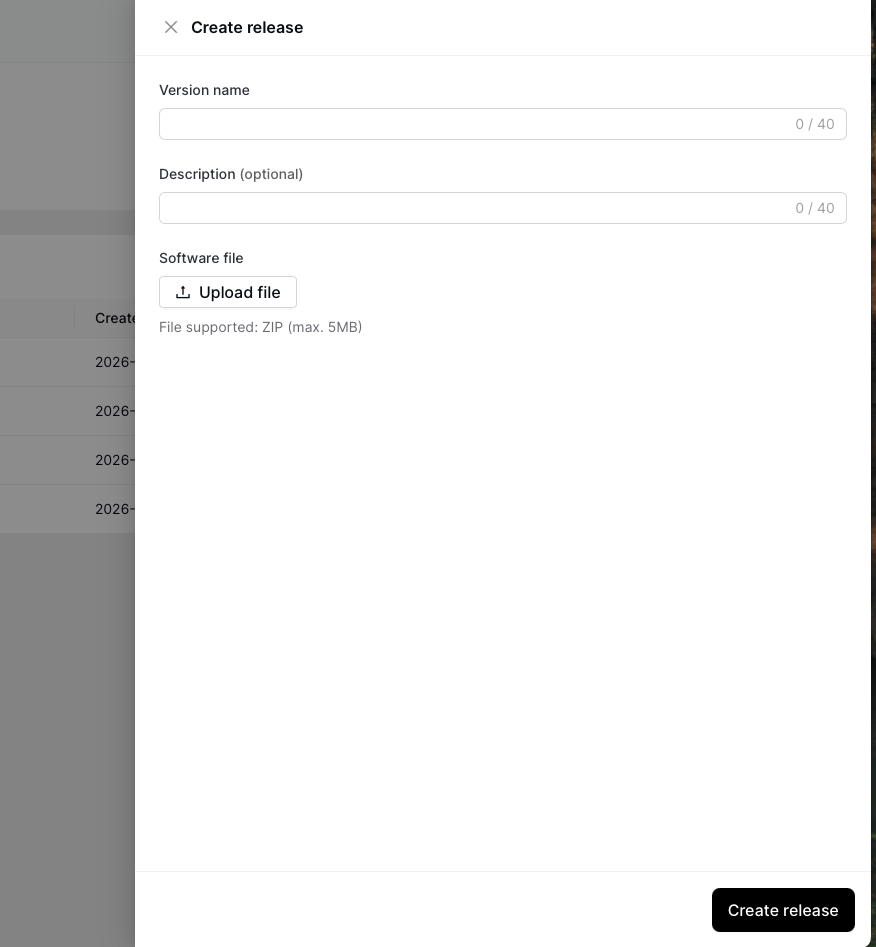
Compress all the file contents to be included into a zip file (maximum size: 1.2MB)
Click ‘Create release’ button
Type the version name and upload the zip file
Select any devices under the Associated Devices tab to deploy the release.
- Deployment manager tab on Device Details - over-the-air (OTA) software release
Make sure that your device is connected to the internet over Wi-Fi or cellular connection
Go to Deployment Management tab of the target device details
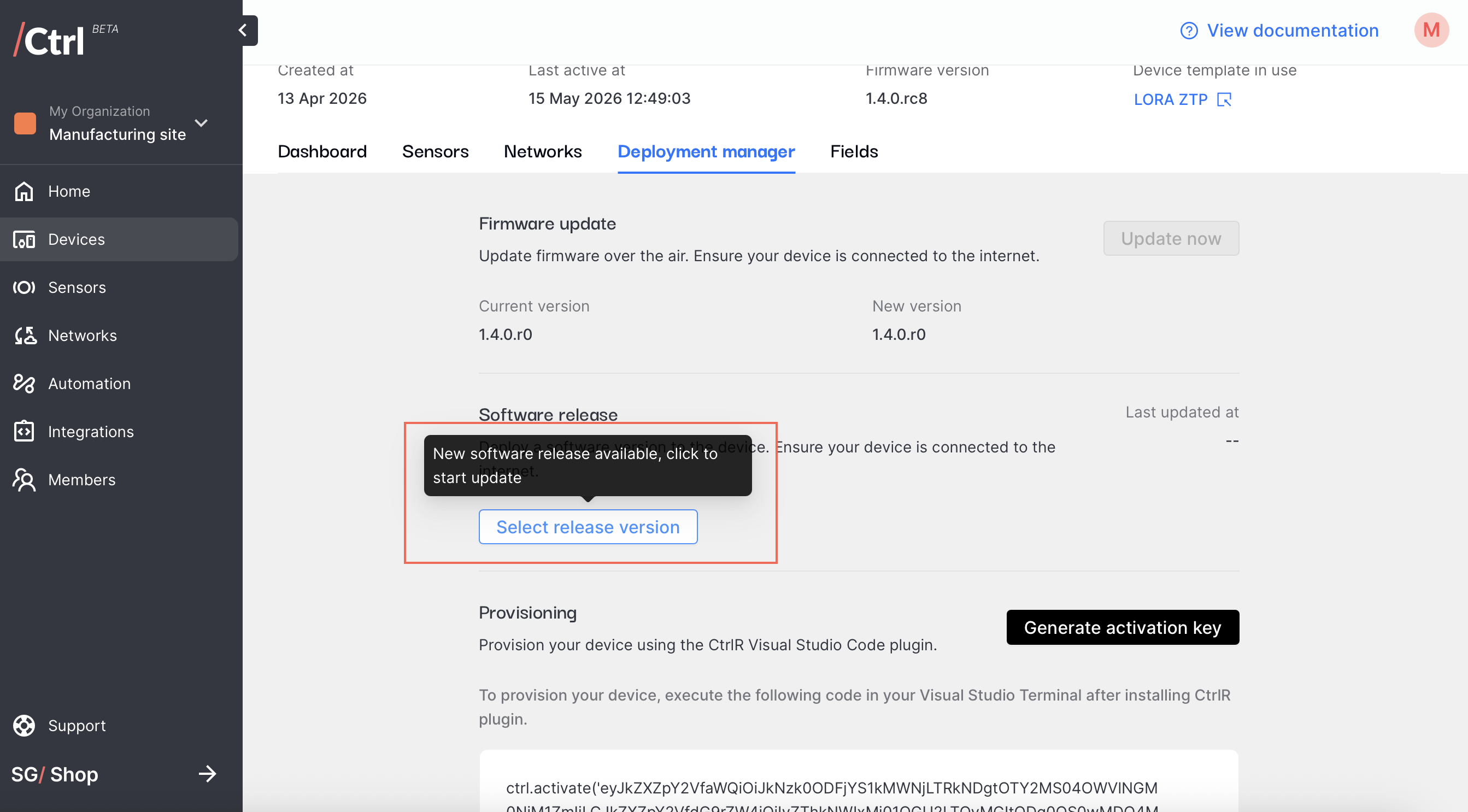
Select the release version and click ‘Deploy release’ - device will be reset upon completion.
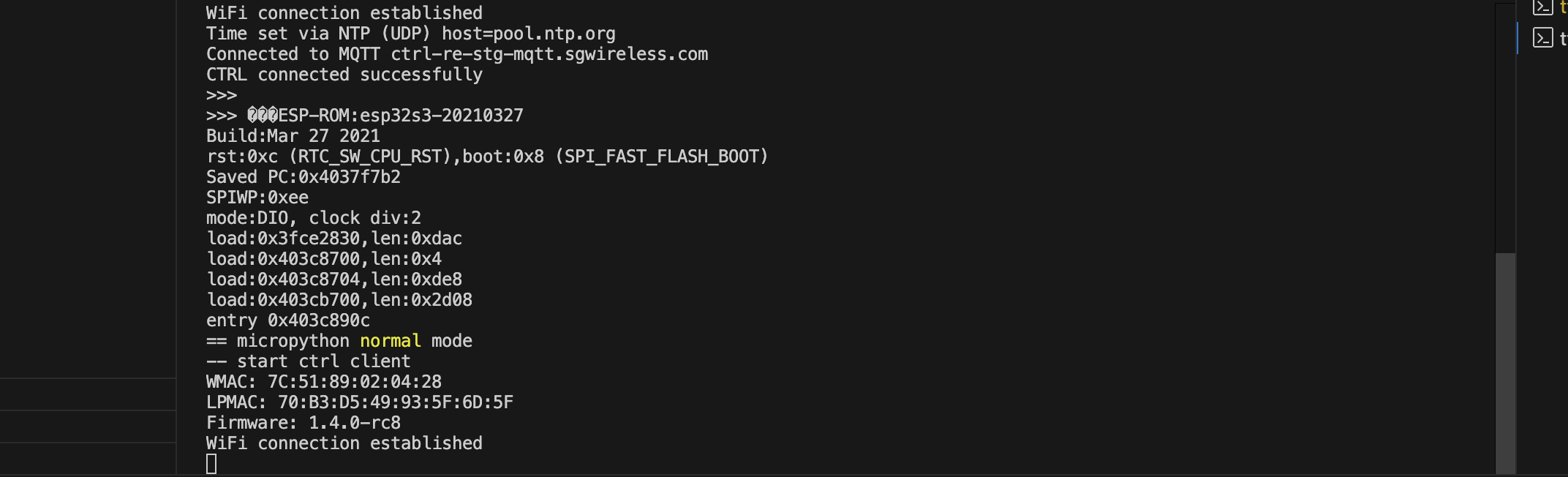
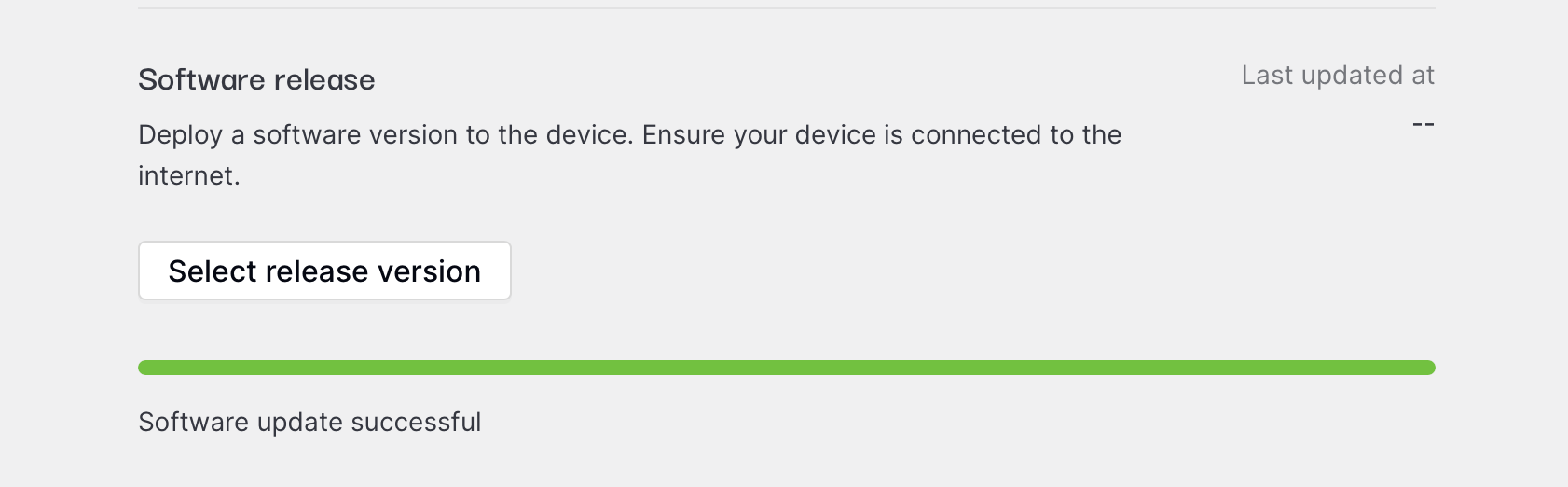
- The OTA software release is not available under the following situations:
Device is offline
A software release is in progress
Device is currently connected over LoRa - the file size is too large to be handled over LoRa connection
If OTA software release is not available, you can perform the deployment though USB connection using our Visual Studio Code CtrlR plugin.