
Device Templates
Scaling IoT projects is great! Until you realize that it means there’ll be hundreds and thousands of devices that you have to configure. By hand.
A Device Template solves this problem: you set up one template that tells a device how to collect and display its data, then apply to all.
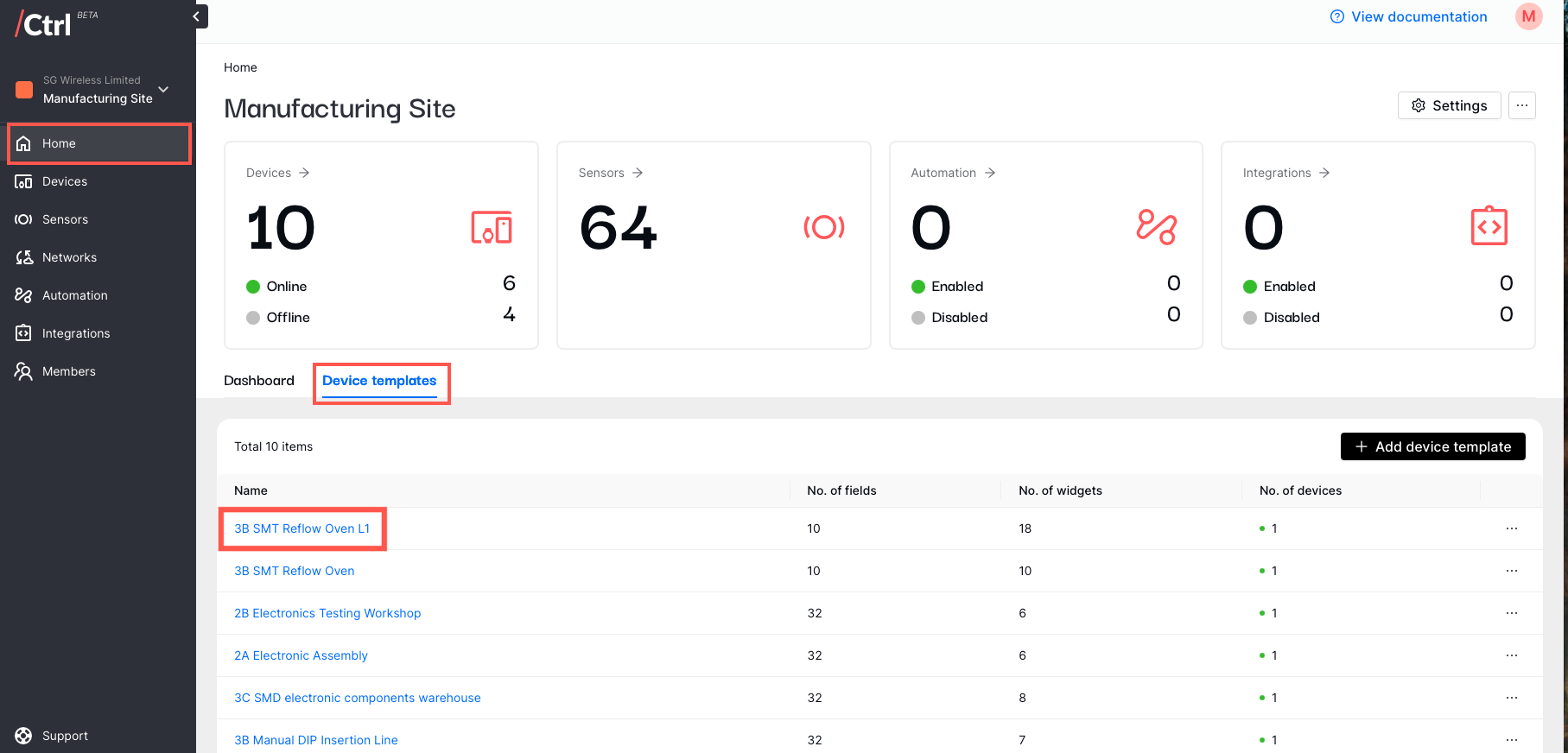
You can expect:
Consistent data handling - All devices using the template store and display data identically
Unified dashboards - Shared dashboard layouts and widgets
Bulk management - Update the template to change all associated devices
Scalability - Essential for managing multiple devices
See how each component comes together to set up your own Device Template:
Fields
Uplink data received from your device is stored in Ctrl’s ‘Device Fields’ - consider them as individual buckets that store different types of data. For example:
A TEMPERATURE field stores temperature readings from the temperature sensor connected to your F1 Starter Kit
A HUMIDITY field stores humidity measurements from the humidity sensor
The device field also stores downlink values sent from Ctrl to your device. For example:
A SET TEMPERATURE field stores the temperature value adjustment done through your Ctrl dashboard to your device.
Note that each field can be used for both uplink and downlink data.
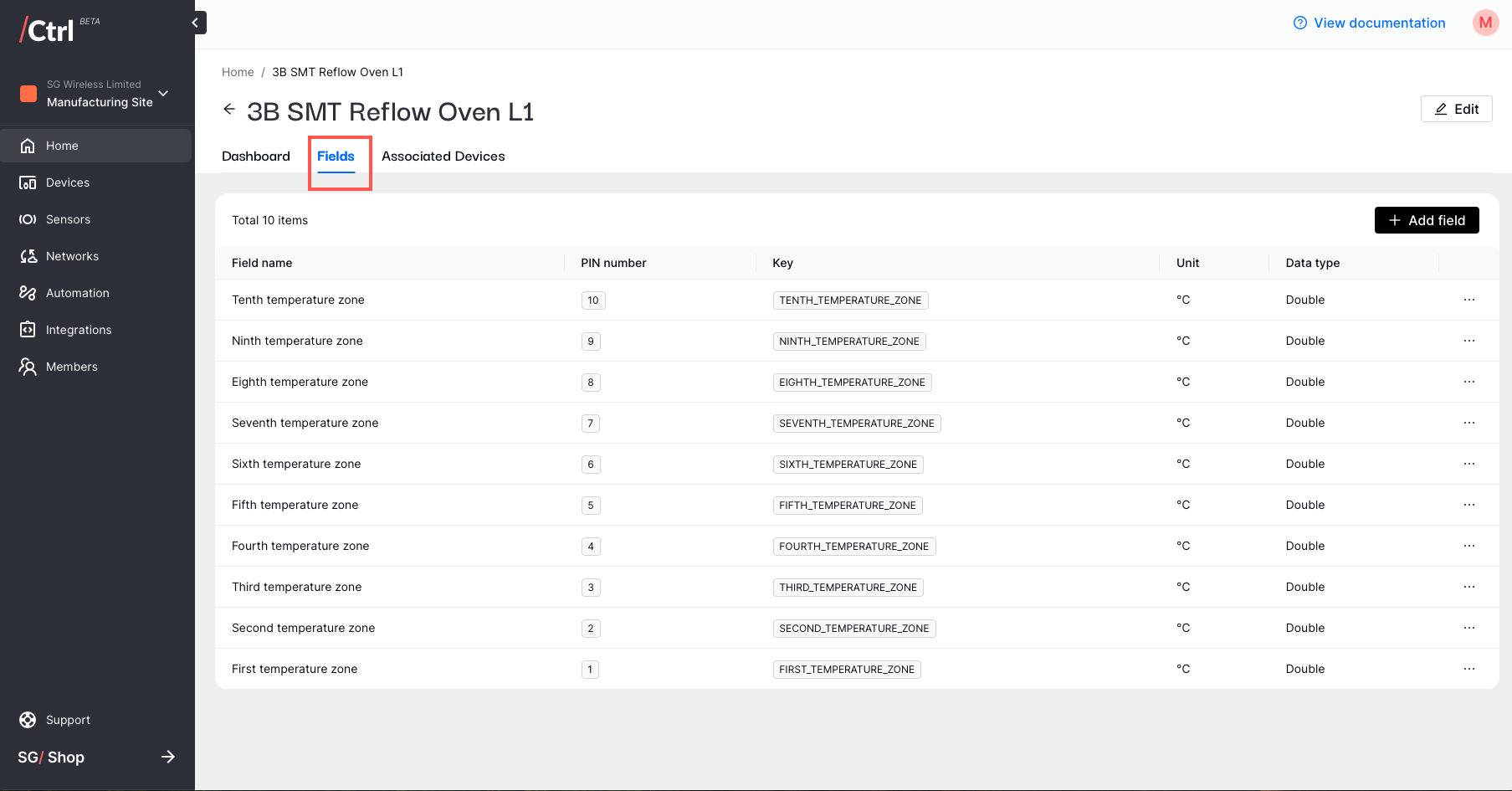
Field Elements
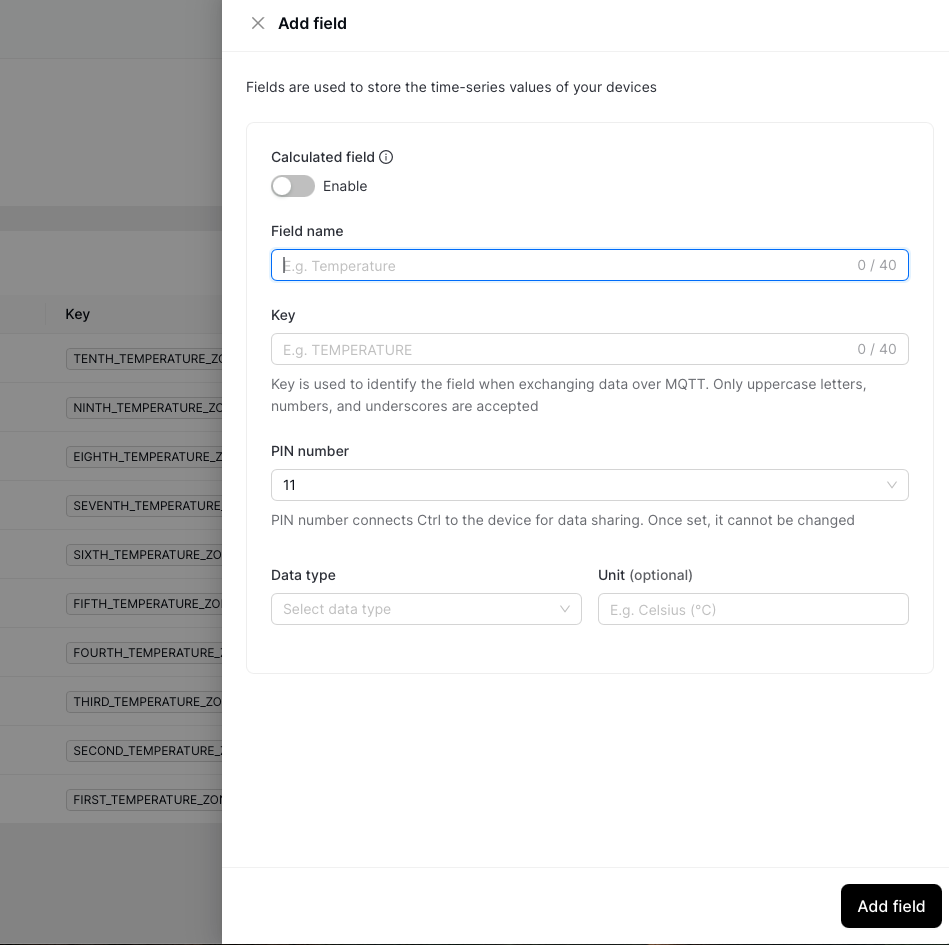
Field name: User-friendly name to identify the fields
Key: Used to identify the field when exchanging data over MQTT. Only uppercase letters, numbers, and underscores are accepted
PIN number: Connects Ctrl to the device for data sharing. It is non-editable.
Data type: Defines the data type of field data. It is non-editable.
Unit: Identifies the quantification unit of the field data.
Field Types
- Standard Field: Stores direct sensor readings as they come from your device, such as:
Numbers (temperature: 23.5°C)
Text (status: “online”)
Boolean (door_open: true/false)
Location (GPS coordinates: 22.123,144.123)
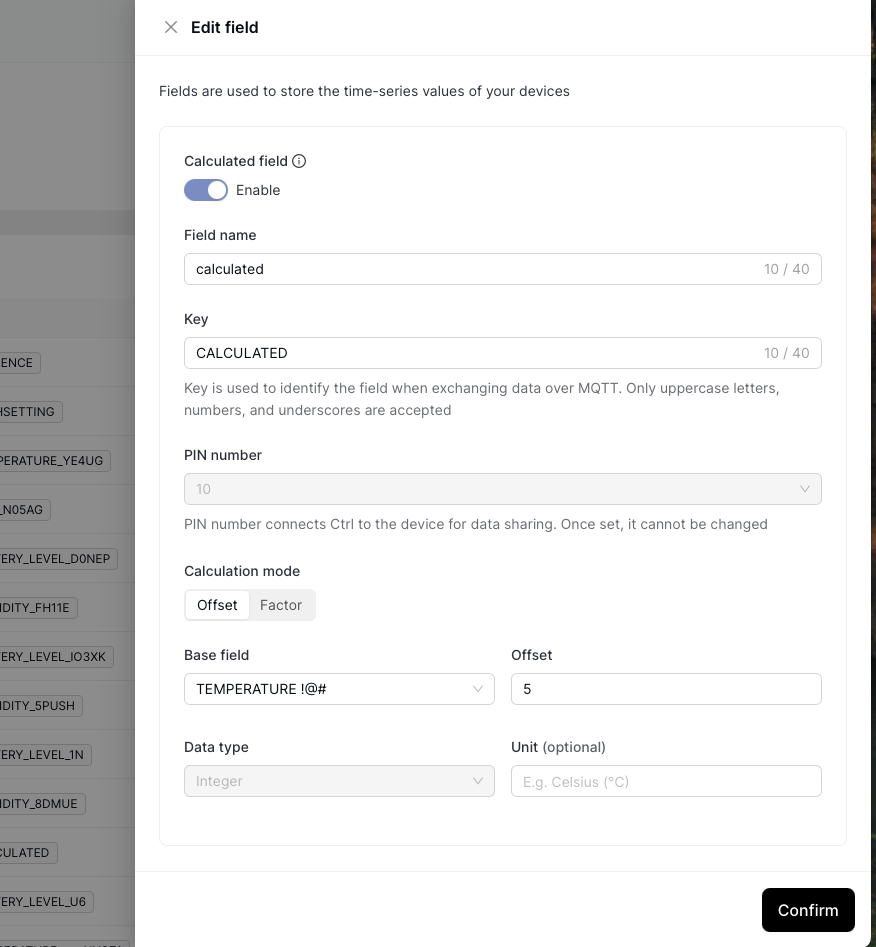
- Calculated Field: Can enabled by activating the ‘enable’ toggle during field creation. It stores calculated values of the standard field. Each calculated field can only be associated with one standard field. There are two options of operation available in calculated field:
Offset: Add or subtract a constant. For example: HKT_Time calculated field stores GMT+8 timestamps by adding 8 to all the values of UTC_Time standard field.
Factor: Multiply or divide by a constant. For example, depth_feet calculated field stores the depth measurement in feet by dividing all values of depth_meter by 3,28084.
Dasboard Layout
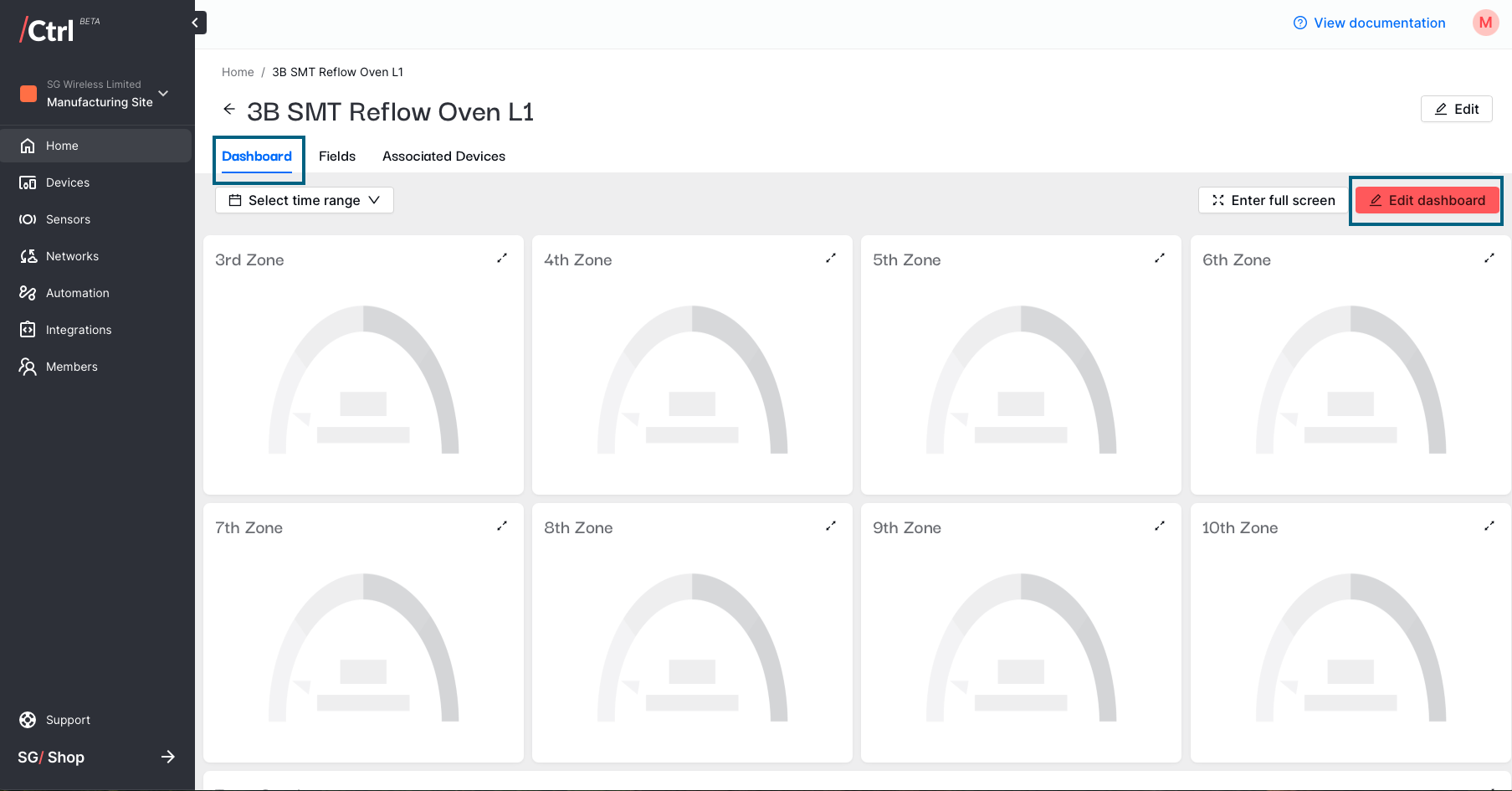
All devices using the same template share identical dashboard configurations. This includes:
Dashboard layout: Configure types, positions, and sizes of the widgets on each device dashboard. This dashboard is located on each device details.
Widget data sources: Configure data souce fields of each widget.
Details regarding the data widget settings can be found on Dashboard & Widgets section
Associated Devices
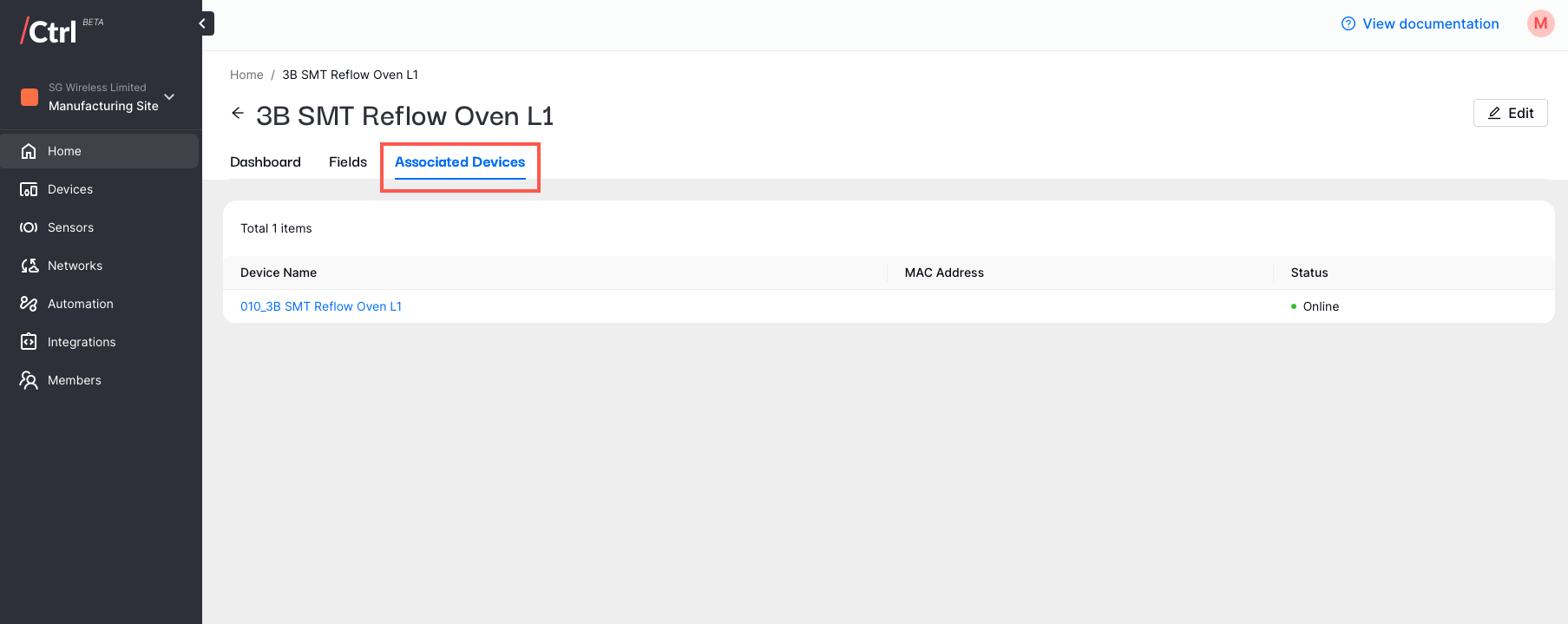
Associated Devices tab lists all devices under the same template. Any changes made to the template elements, such as dashboard, fields, or software releases, will be reflected on all associated devices.
Software Releases
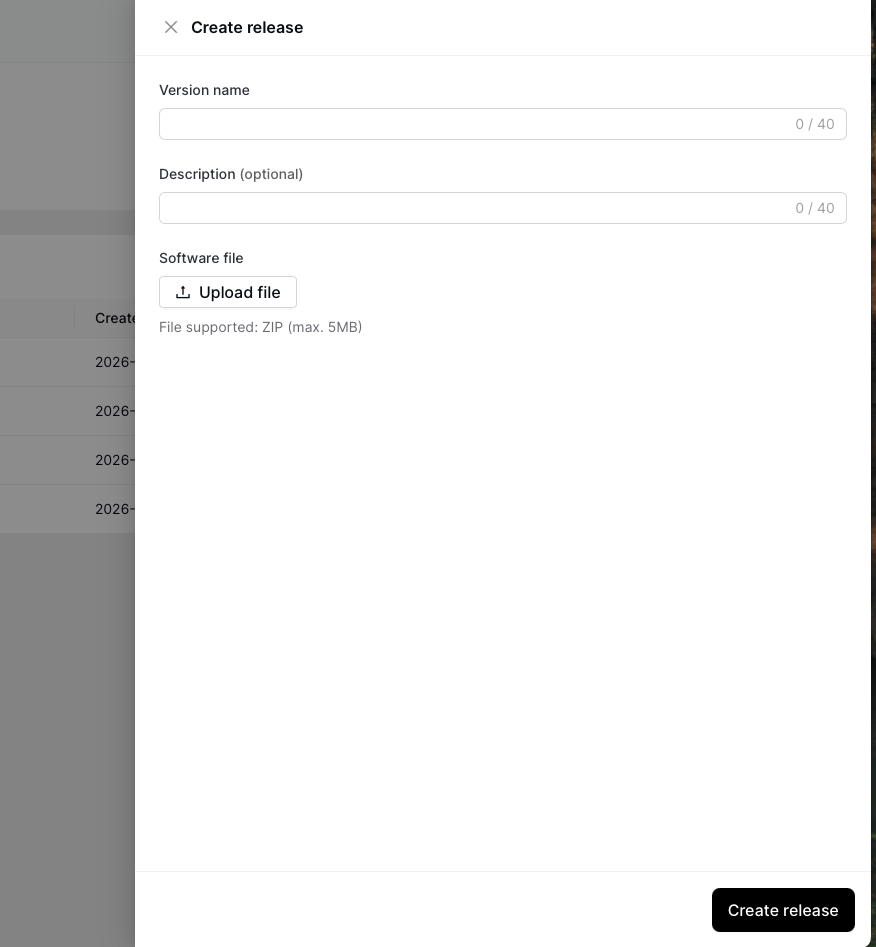
A repository of file content that can be uploaded over-the-air to the device. User needs to first create a new release and upload the zipped file content on this page before deploying it to the target device(s).
Automation
Automation triggers autonomous actions based on the specified condition. User can apply the automation rule to all devices under the same template or to a specific device.
Trigger
Determine what triggers the condition-checking mechanism:
Immediately: Checks the condition on every incoming measurement
Device status: Checks the condition based on the specified device status
Interval: Checks the condition once every specified interval
Fixed time: Periodically checks the condition at a specified time of the day. Make sure the time zone has been set correctly.
On top of the nature of triggers, user also can configure the applicable days of the week. For example: user can set the automation to only activated from Monday to Friday.
Source
Determine which device template the automation be applied to. The conditions checking will be applicable to devices of the specified template. However, user can also specify specific device(s) the automation will be applied to.
Condition
Set criteria for the device state or field value to execute the action. User can compare the field value with other field or with a constant. Logical operations OR and AND can be used to check for multiple conditions.
Furthermore, to prevent from repeating actions being executed, user can set a delay time before the next condition checking is executed.