
Azure IoT Hub
Whenever one of your integrated devices sends a signal to our broker, we republish the binary payload to the endpoint specified for its integration through the Azure IoT Hub SDK.
Set up your IoT Hub
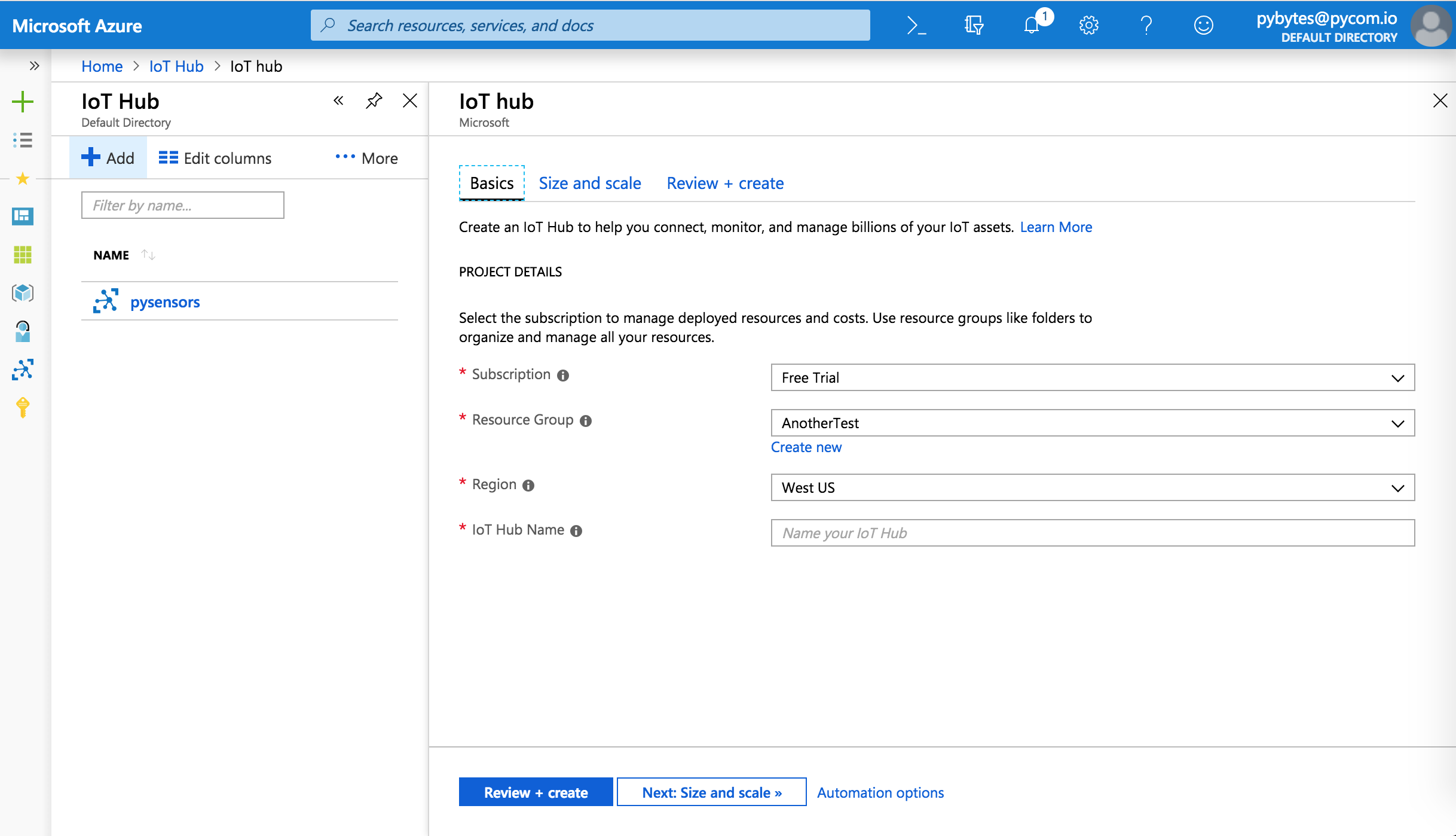
The first step requires you to create an IoT Hub. This is an Azure service that enables you to gather high volumes of telemetry data from your IoT devices. It then moves them into the cloud for storage or processing. In order to do that, follow the official documentation. To summarise, you’ll need to:
Specify your subscription plan.
Create or choose a resource group. This contains resources that share the same lifecycle, permissions and policies. The name can contain alphanumeric characters, periods, underscores, hyphens and parentheses. It cannot end in a period.
Choose a region.
Choose an IoT Hub name (its length must be between 3 and 50, and it can use only alphanumeric characters and hyphens). It won’t be possible to change this name later.
Setting up your Ctrl integration
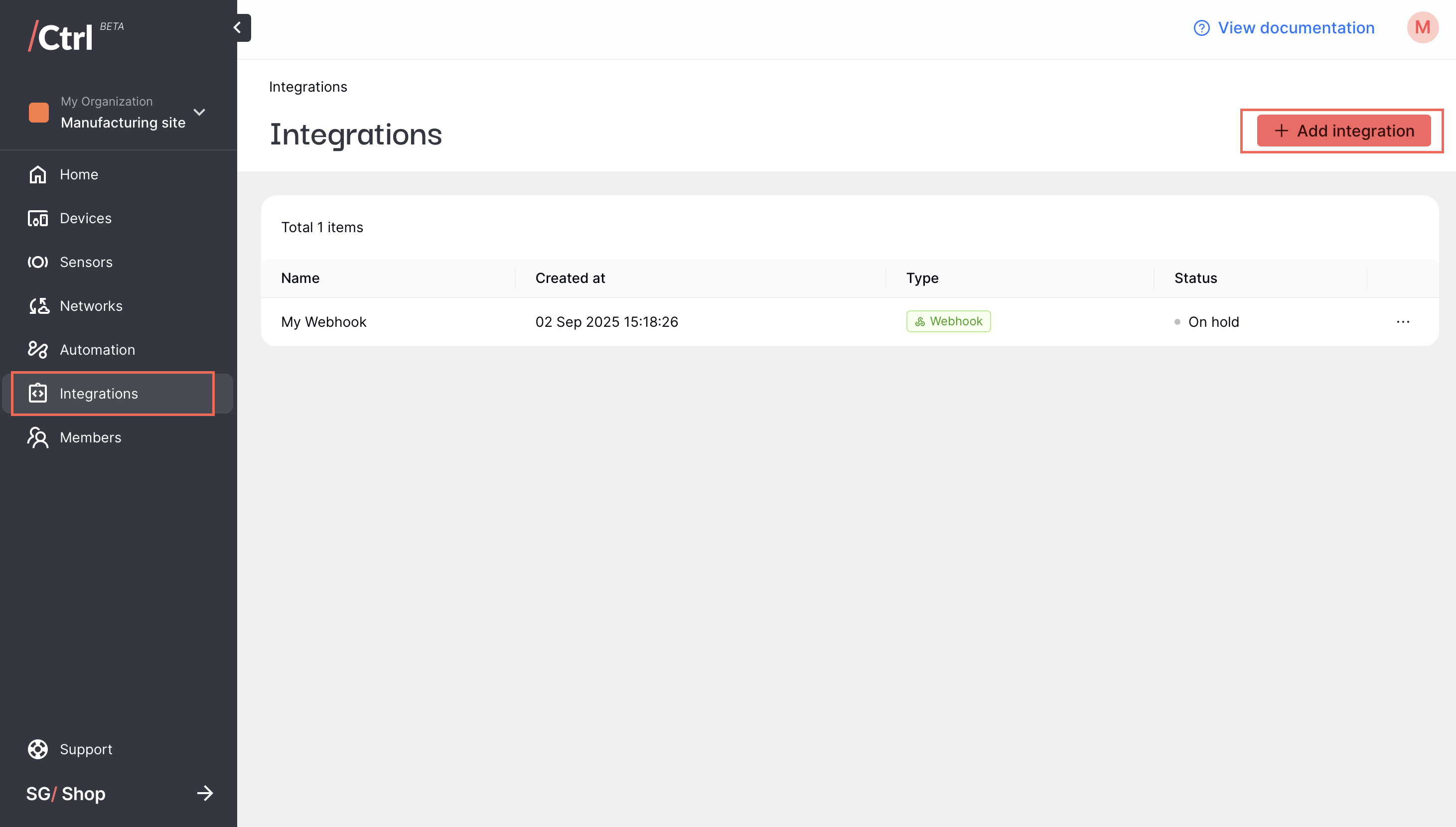
On your Ctrl page, click Integrations on the side menu, then click “Add integration” on the top right corner.
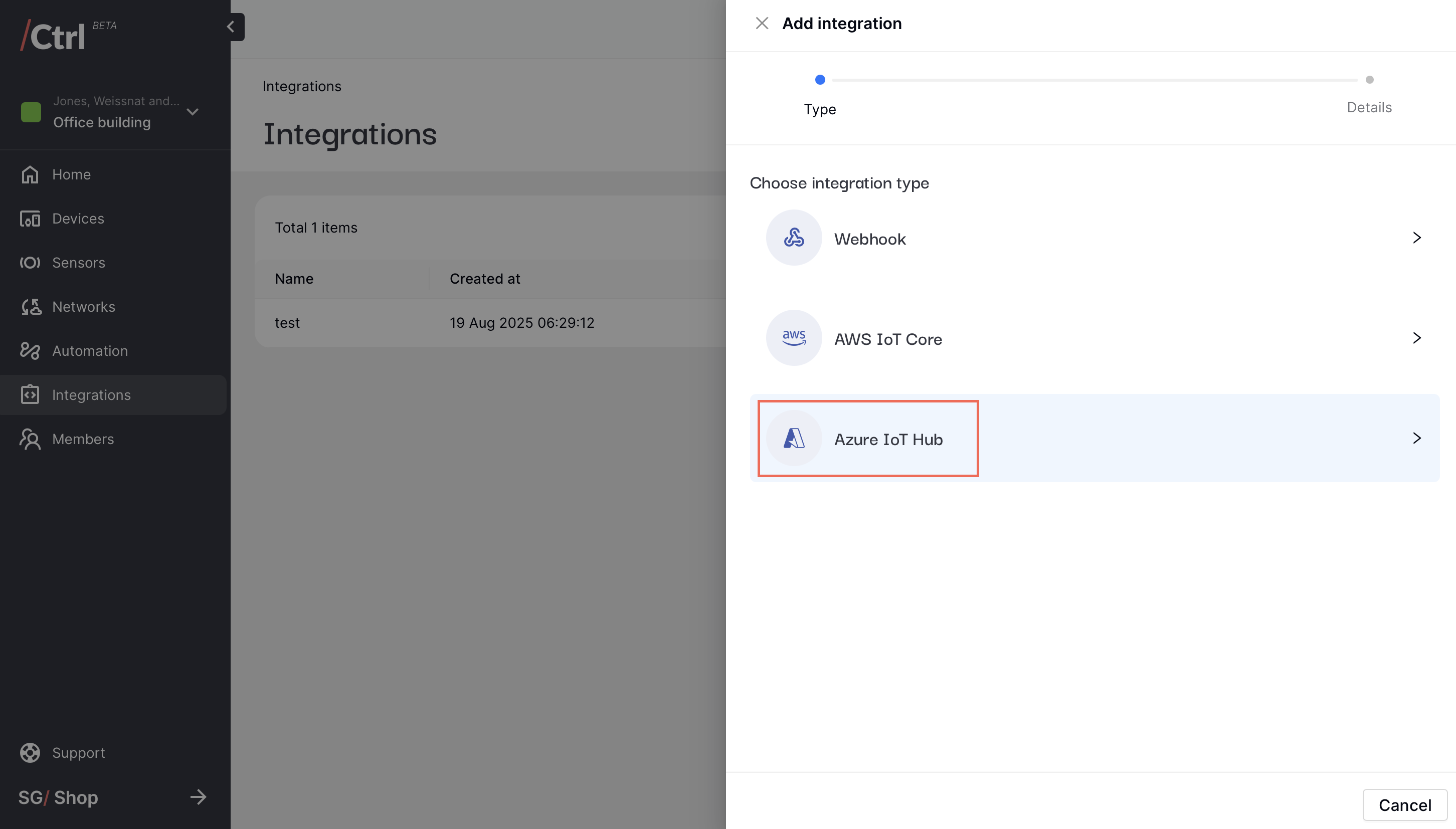
Select Azure IoT Hub as the integration type.
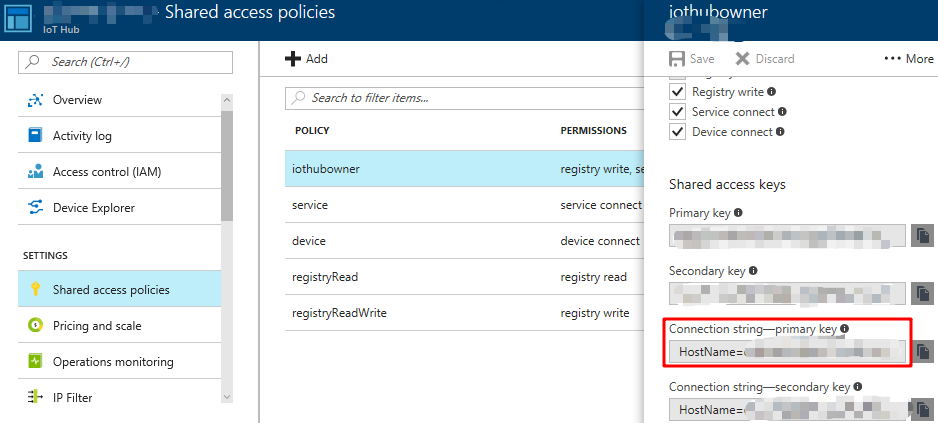
Add a user-friendly name to identify the integration instance, then copy and paste the connection string of your IoT Hub to the Ctrl form.
Click “Save” once you are done.
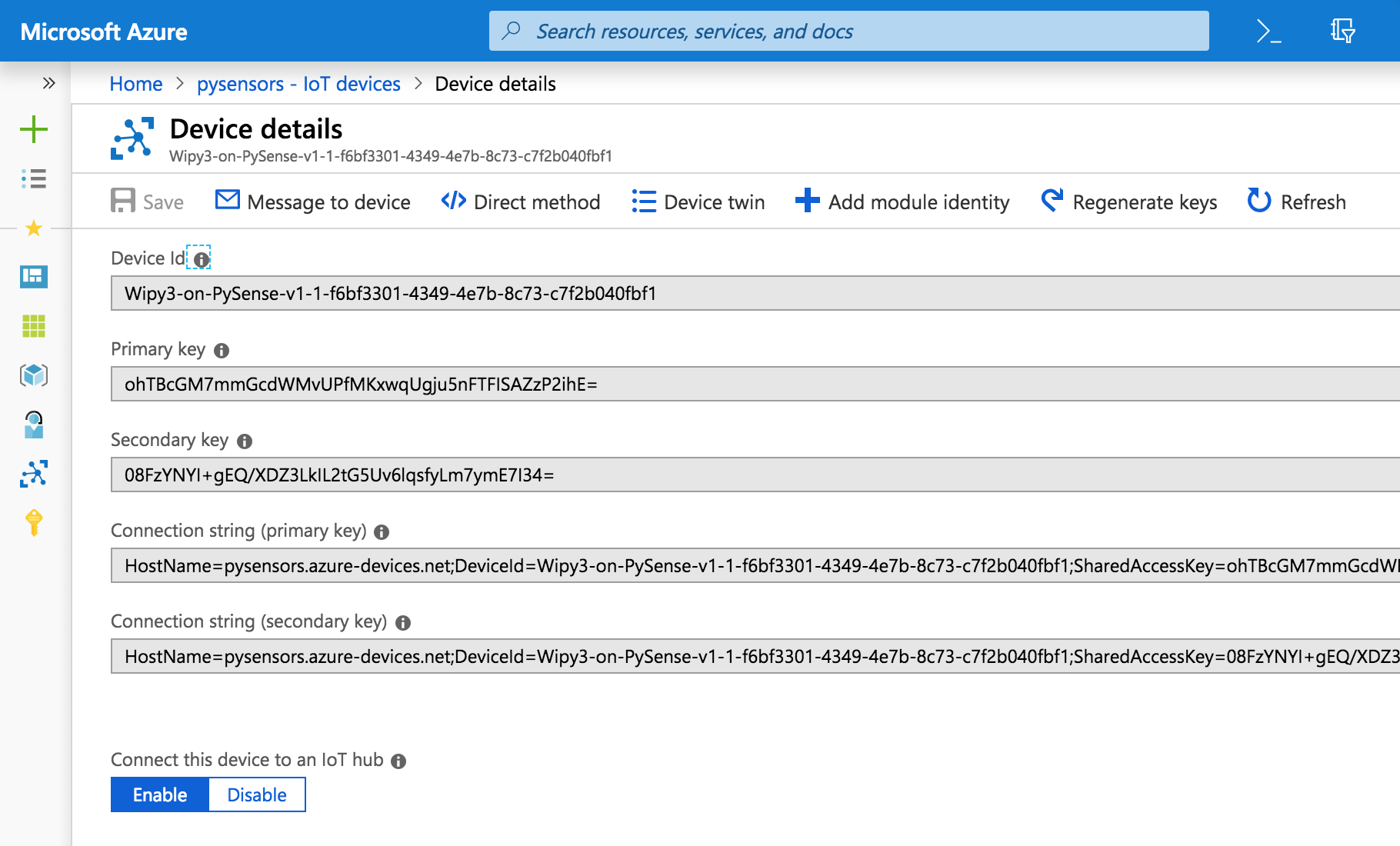
The corresponding device has been created in Azure as well. You just have to log in to the portal, click on its IoT Hub and then click on the device just created. You should be able to see all the device’s details, also the connection string which will be saved encrypted in our database and used to republish your data to your Azure IoT Hub.
Try to send some signal messages with your device. You should be able to see in the dashboard that the system has received them. More information on testing device connectivity can be found here.
Warning
Do not delete Azure devices directly from the Azure user interface, otherwise the integration with Ctrl will stop working. Always use the Ctrl interface to delete Azure devices.